
This article describes the different methods your League can use to assign placements and the new tools added to the Assignment Tool in Position Manager to improve filtering and placement assignment.
Finding Members for Placement Assignment
Search Filters
To pull Members into the assignment screen in Position Manager and begin the assignment process, the Assignment Tool offers four filters. You can see them the top of the screen. 
- Wave: this contains the Wave or Waves You League uses uses in its placement selection process. Select a Wave to get a list of Members who used the Placement Tool under that Wave. If your League uses only the default General Placement, select that.
- Status Name: this filter contains all of the Member statuses your League uses for its different Member groups, such as Active Gold, Provisional-Fall. Select from this list of local statuses to get a list of Members who have that status.
- Status Type: this is the list of Association-wide Member statuses: New Member/Provisional, Active, and Sustainer. Select a term from this filter if you want all Members in that status, regardless of their League local status or sub-group.
- Access Group: this is the list of groups your League has created based on different conditions, such as status, committee, permissions, and requirements. If you use Access Groups, select from the list of groups your League has created.
Simple & Advanced Filtering
The filters described above can be used in simple and advanced searches to produce a list of Members for assignment.
Simple filtering uses one filter at a time to look up Members.
For example, if you want to assign placements only to Members who have completed the Placement Tool process, you would:
- From the Wave filter, select one of the waves listed to pull up all Members who completed their placement selection and ranking under that wave.
Another example: If you want to pull up all Active Members in your League, whether they completed the Placement Tool process or not, you would:
- Leave the Wave filter blank to capture all Members needing a placement
- From the Status Type filter, select Active to pull up all Active Members, regardless of their local League status or sub-group
Advanced filtering allows you to combine filters to search for Members in a more precise and relevant manner. To combine filters, advanced filtering uses these operators to control results:
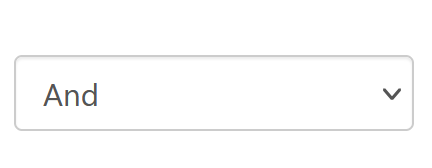
AND: Narrows your results by filtering to find Members who have all the characteristics selected from the search filters. Only Members for whom all terms are true are listed in the results.
Example: To find Members with the same League status who completed a Wave in the Placement Tool:
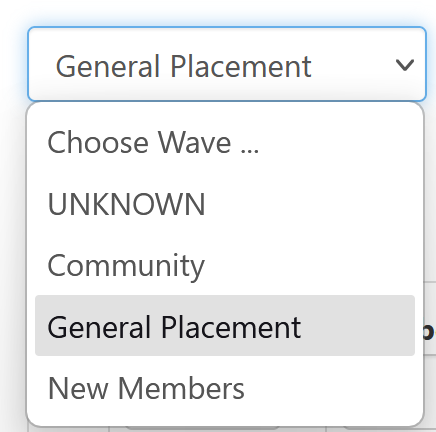
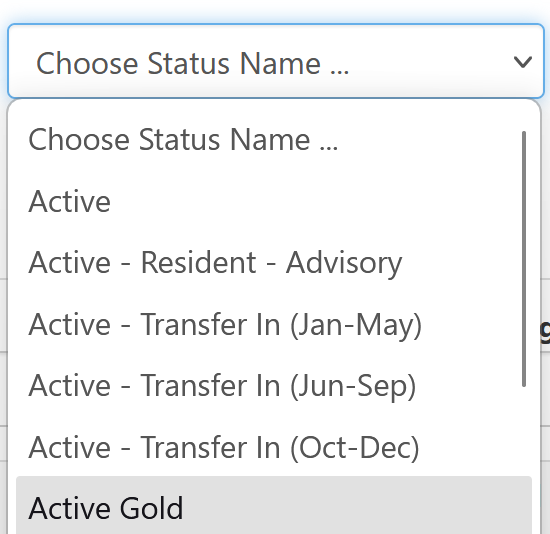
Wave: General Placement AND Status Name: Active-Gold
 |  |  |
OR: Broadens your results by filtering to find Members with either of the characteristics selected from the search filters. Members for whom either term is true are listed in the results.
Example: To find Members who are either New Member/Provisionals or Transfers:
Status Type: New Member/Provisionals OR Access Group: Active - Transfer In (Jan-May) Access Group
AND/OR: Narrows and broadens your results by processing the operators in a set order, usually first term AND synonyms of a second term separated by OR.
Example: To find Members who completed the General Placement Wave who are either Active Members or are in the Annual Gala Committee Access Group.
Wave: General Placement AND Status Type: Active OR Access Group: Annual Gala Committee
Additional Narrowing of Results
The enhanced Assignment Tool allows for further narrowing of results after the first round of filtering. With your first round of results, you may want to look for Members by the Positions they selected in the Placement process, the position suggested for them by the algorithm, whether they have been assigned a placement, or by their current position. To further filter results in this manner, use the column headers.
Here are examples:
1. If you want to further narrow your results of all Members who completed the General Placement Wave to those Members who have not been assigned a placement:
- From you results list of Members who completed the General Placement Wave
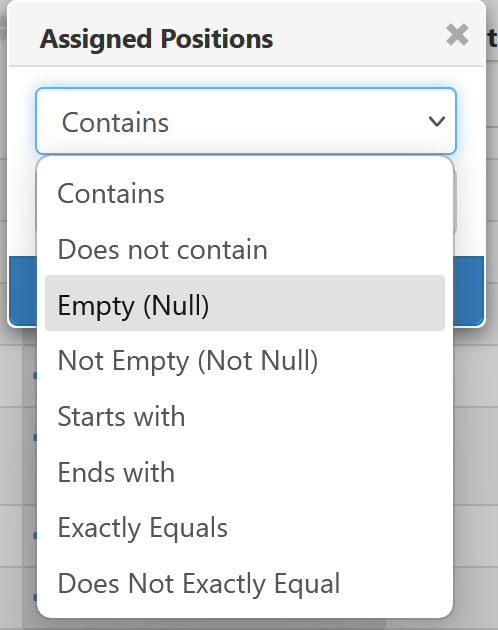
- Go to the Assigned Positions column and click the three dots next to the search box

- In the modal window, select Empty (Null)
2. Similarly, with your results list from when you filtered by League Status, Active-Gold, and Wave, General Placement, you can filter for Members who chose a specific placement during the selection process:
- Go to the Position Choices column and in the search box enter the placement name

There are many other ways in which you can further narrow results of the first round of filtering by filtering using the column headers in your results list. To perform more searches within your results, clear column filters by clicking the Clear Filters icon at the top of the results screen:
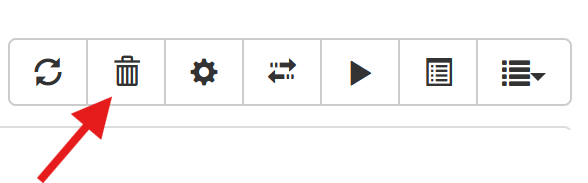 Note: Though it looks like it, this is NOT a delete icon.
Assigning
Placements & New Tools
Now that you have pulled the Member list you want into the Tool for placement assignment, you can now decide which of the assignment methods your League will use. The enhancements to the Assignment Tool have placed all of the assignment functionality from Position Manager in one place so that Leagues can assign:
- Members who have completed the Placement Selection & Ranking process in the Placement Tool
- Members who have not gone through or not completed the Placement Selection & Ranking process in the Placement Tool
Below, we will discuss the new tools and functionality added to the Assignment Tool first and then present the different assignment methods.
New Functionality in the Assignment Tool
There are new features in the Tool that that add flexibility and efficiency to the assignment process.
Position Manager Functions in the Assignment Tool
The Position Manager Mass Assign process is now part of the Assignment Tool.
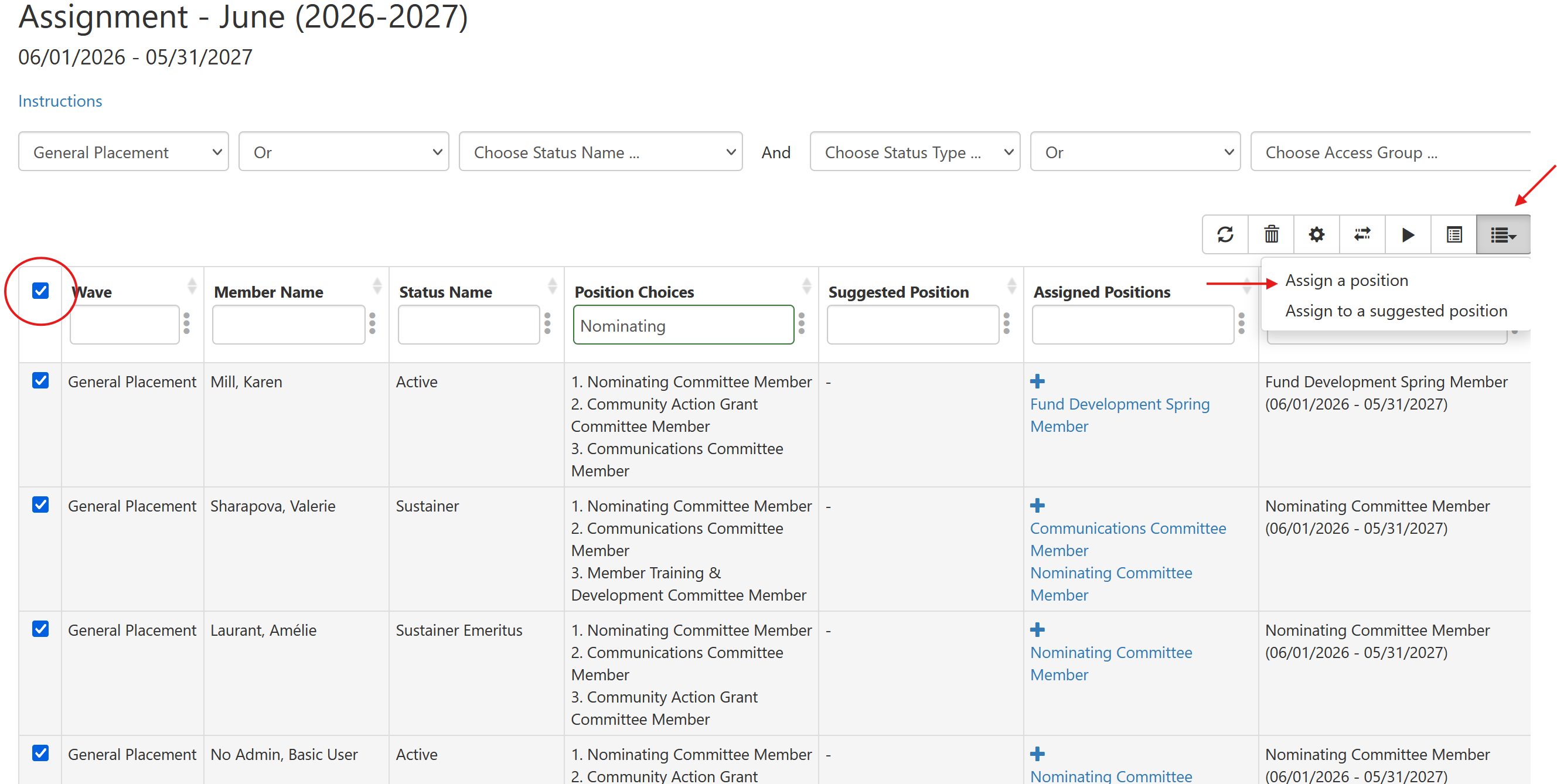
- To use the Mass Assign function in the Assignment Tool:
- From the results list of Members you have pulled up after filtering, use the Check All button at the top of the list to select Members to assign.
- Next, open the Assignment function from the top right side of the screen
- Select Assign a position
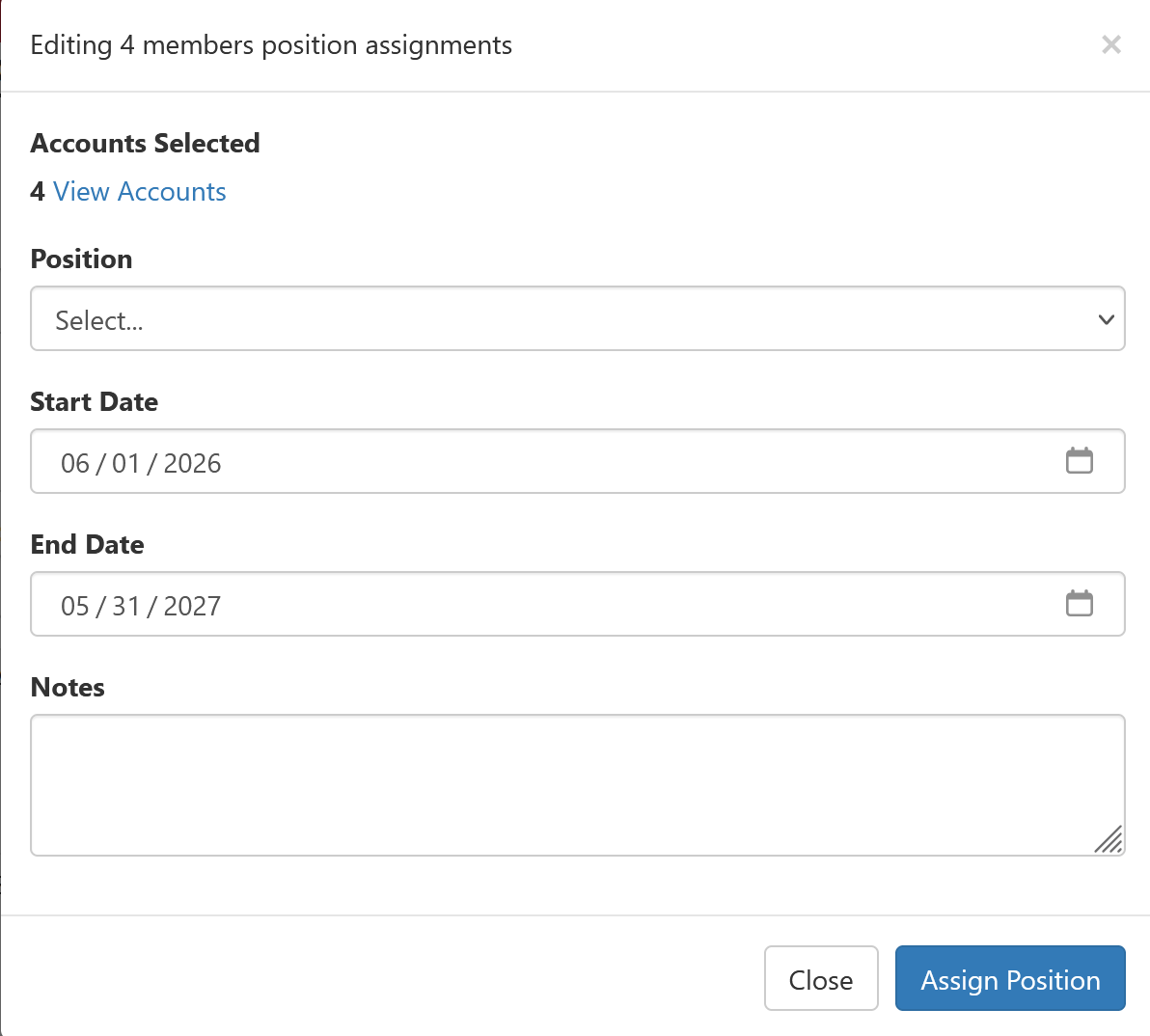
- In the dialog box, you will see how many Members you are assigning (and can click to see their Profiles)
- You can then use the Position dropdown to select the placement to assign
2. In addition to mass assigning placements to multiple Members, the Assignment Tool now offers the ability assign individual Members their placements manually. (There is no need to go back to the Position Manager.)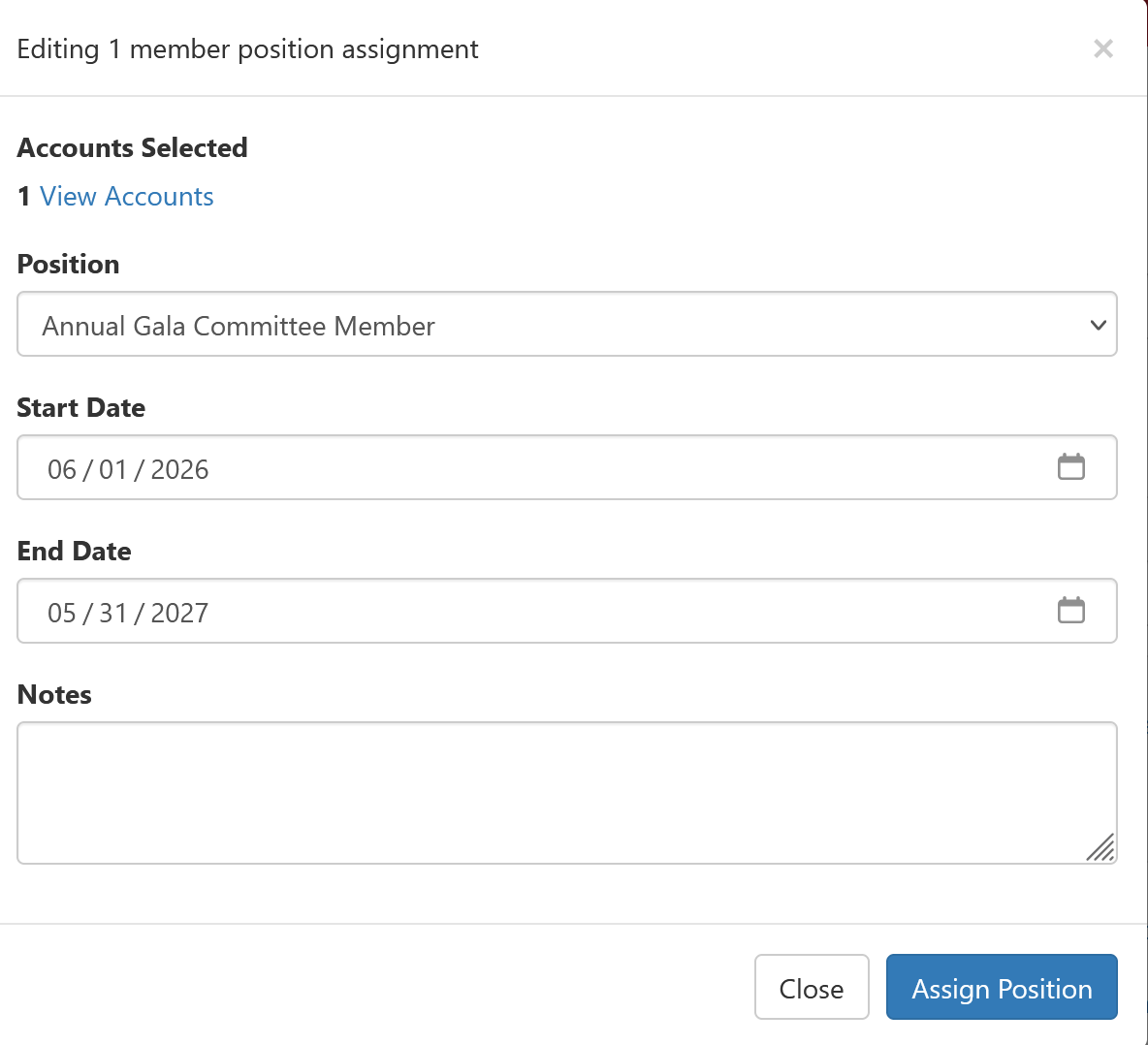
Assigning Positions Suggested by the Placement Algorithm
The Assignment Tool has gained functionality for assigning placements for Members going through the Placement Tool.
- Assigning suggested positions in bulk
- Once you have set up and run the algorithm and received suggested positions for Members
- Filter for the suggested position you want to assign
- Check off all the Members that will be assigned to that position
- Select the Assign to a suggested position
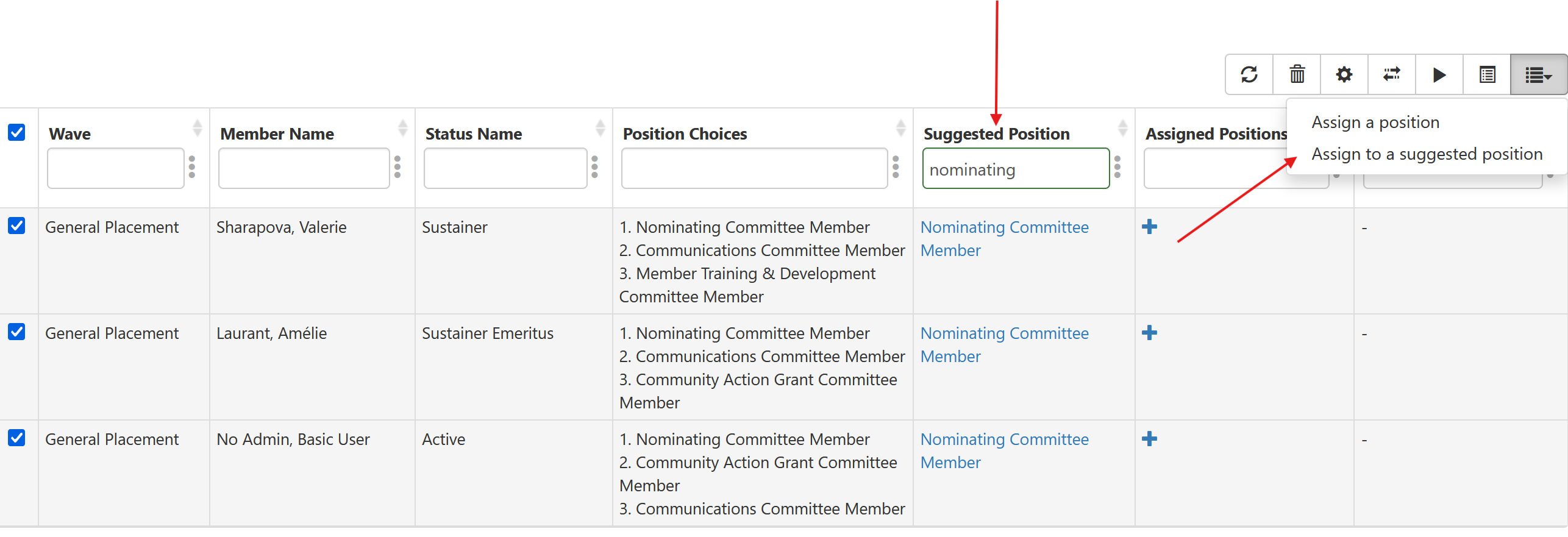
2. Using Placement Tool reports to inform your assignment decisions:
- Leagues need information about the Placement Tool process to better understand how best to make final assignment decisions.
- You can now open Placement Tool Reports from the Assignment Tool screen. For example, the Placement Position Staffing report can offer insight on the minimum and maximum staffing of of committees while you are assigning additional Members to positions.
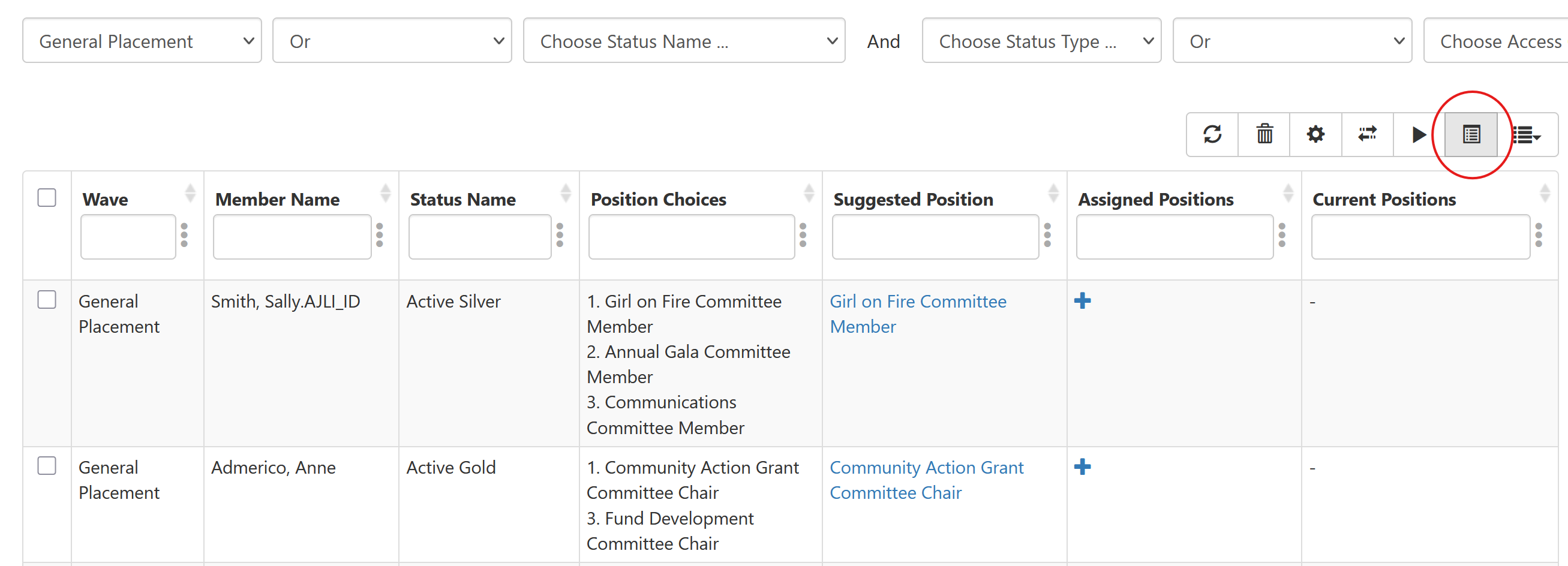
Assigning Members Who Have Completed the Placement Selection Process
There are two methods for assigning placements after Members have completed the Placement Tool and selected and ranked their placements:
- Setting up and running the algorithm and deciding which suggested positions to assign. You can use the check boxes next to Members' names to assign one Member at a time or, as in the example above, multiple Members at once:
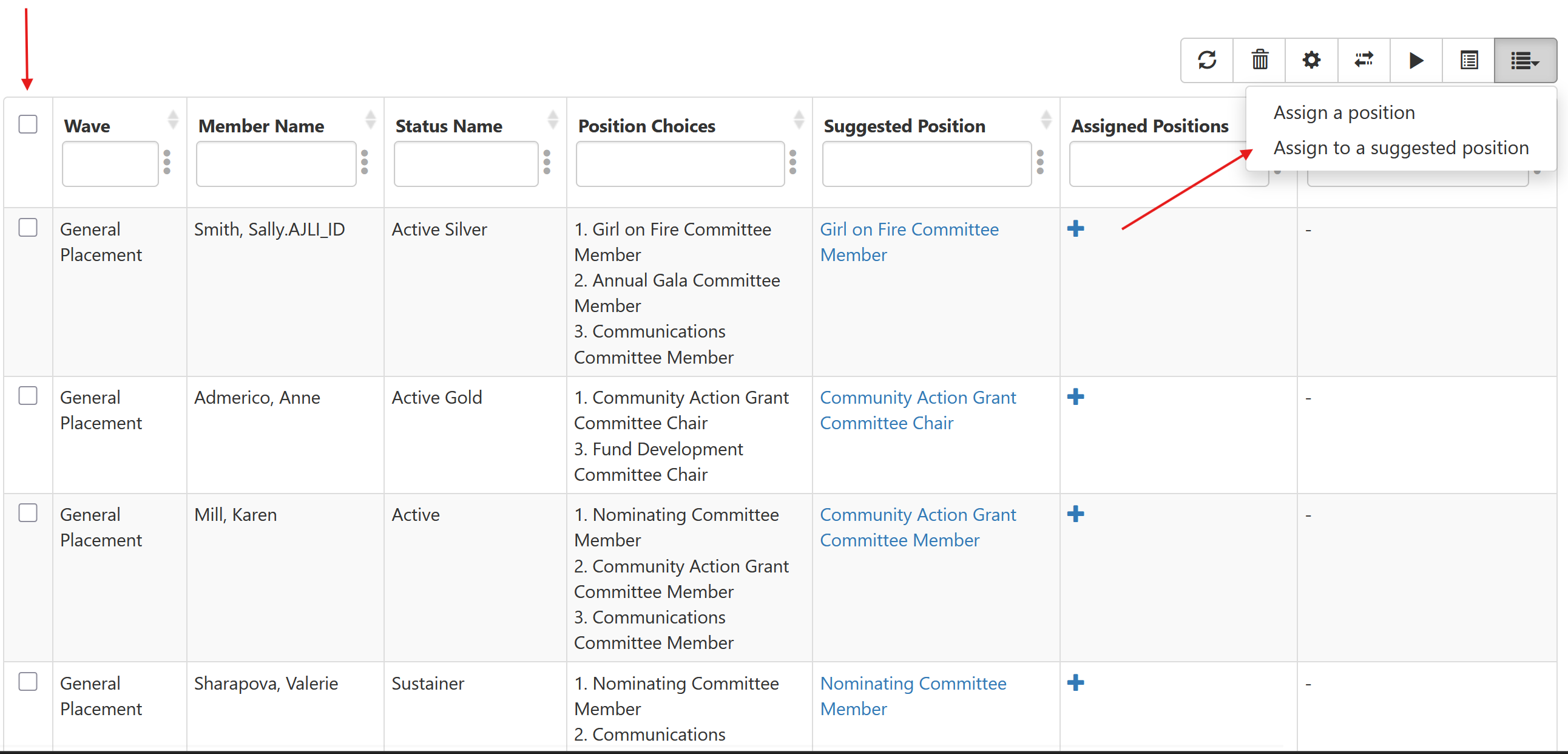
2. Setting up the algorithm and telling the Tool to automatically assign all suggested positions. To do so, select the double-arrow icon to Accept All Recommendations:
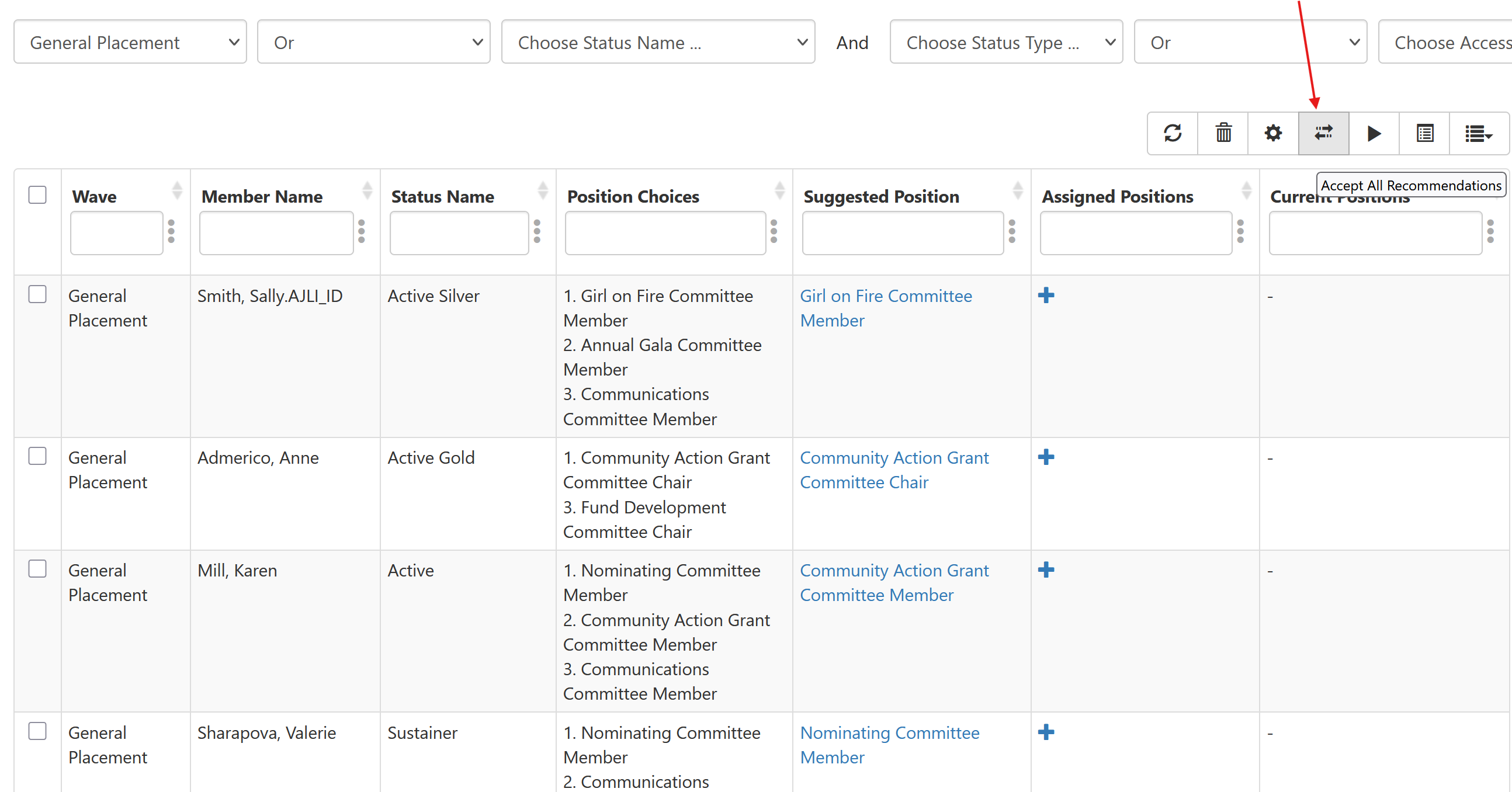
Assigning Members Who Have Not Completed the Placement Selection Process
There are new filtering options and new Position Manager functions in the Assignment Tool now that allow Leagues to pull in Members to the Assignment Tool even when the League has not used the Placement Tool or if Members have not gone through Placement.
- Use the filtering options discussed above to find Members either by status or other factor.
- Remember to leave the Wave filter blank
- Once you have your results list of Members, you can assign Members individually or in bulk. See the Position Manager Functions in the Assignment Tool section above for details.
Recommended Articles
- To learn about creating and running the Placement Algorithm, see Configuring and Running the Genetic Algorithm.
- In case you still prefer to assign placements in the Members' Profiles, see Assigning & Editing Position Assignments from the Profile.