This video shows how to create a dues definition for a single payment. (Duration 1:59)
A Dues Definition defines a dues option that will be offered to members when she pays her dues. The Dues Definition defines the base dues amount, and payment type (single payment, payment plan, recurring). One or more Dues Definitions should be defined for each dues amount category (i.e. members that are charged a specific dues amount), and payment type being offered. Take note, a single Dues Definition can be assigned to multiple statuses.
Here is an example for a League which charges $150 for active dues, $175 for New Members, $100 for Sustainers, and $75 for Sustainers 65 Plus. The League is also offering payment plans for Actives and New Members, and autorenew for Sustainers (Autorenew will charge the member's credit card automatically each year for the dues amount).
Each row in this table represents a separate Dues Definition. Take note, the amount is the base dues amount, not including add-ons. Add-ons are configured separately.
Also, for the Dues Definition name, the recommended naming convention can be set up as: Member Dues - "Status Name" Member - Payment Type.
If it's a payment plan, you can include the frequency or number of installments, which will make it easier for reporting.
| Dues Definition Name (Recommended naming convention) | Statuses | Base Dues Amount (not including add-ons) | Payment Type |
| Member Dues - Active - Single Payment | Active Bronze Active Silver Active Gold | $150 | Single Payment |
| Member Dues - Active - 3 Payment Plan | Active Bronze Active Silver Active Gold | $150 | Payment Plan |
| Member Dues - New Member - Single Payment | New Member | $175 | Single Payment |
| Member Dues - New Member - 2 Payment Plan | New Member | $175 | Payment Plan |
| Member Dues - Sustainer - Single Payment | Sustainer | $100 | Single Payment |
| Member Dues - Sustainer - Annual Recurring | Sustainer | $100 | Autorenew |
| Member Dues - Sustainer Over 65 - Single Payment | Sustainer 65 Plus | $75 | Single Payment |
| Member Dues - Sustainer Over 65 - Annual Recurring | Sustainer 65 Plus | $75 | Autorenew |
Required Access:
You will need Dues Administrator or Administrator administrative access level.
Where to Go:
To get to Dues Setup, follow these steps:
- From the Member Portal, click on Admin > Member Management
- Select Dues Management
Creating a Dues Definition:
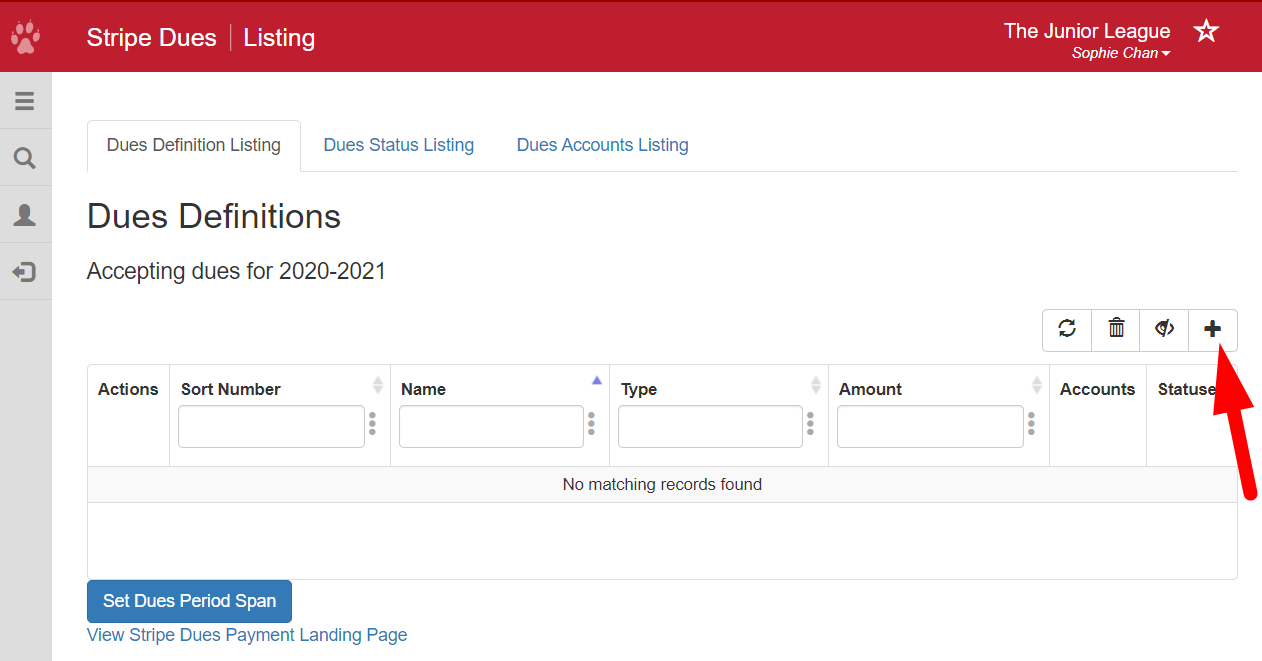
- Click the plus sign on the right side of the page.
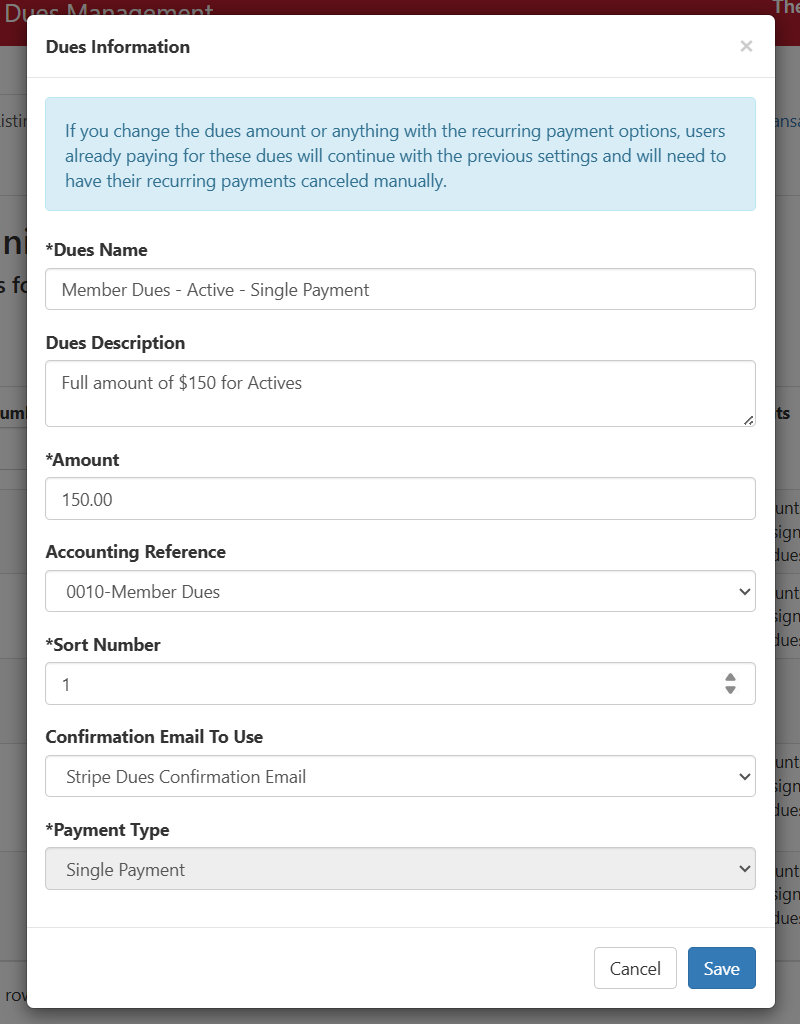
- Dues Name - Enter a descriptive name for your dues definition. e.g. Member Dues - Active - Single Payment
- Dues Description (optional) - enter a description for the the dues definition.
- Amount - Enter the amount of the dues owed. This amount should reflect the base dues amount, NOT including any add-ons. Dues add-ons are configured separately.
- Accounting Reference - Choose an accounting code, which will be included in dues reports. Account reference codes can be configured in the Accounting Reference Configuration tool.
- Sort Number - indicates where in the list of dues definitions displayed to the member this definition will appear.
- Confirmation Email to Use - select Stripe Dues Confirmation Email, which will be the dues confirmation email sent from Member Essentials. Take note, a separate email receipt from your Stripe Account (stripe.com) will be sent to Members.
- In the Payment Type dropdown, choose the following option:
- Single Payment - The member will pay the dues in one lump‑sum payment.
- Payment Plan - The member will pay dues in multiple equal payment installments. The member's credit card will automatically be charged according to the schedule defined in the payment plan.
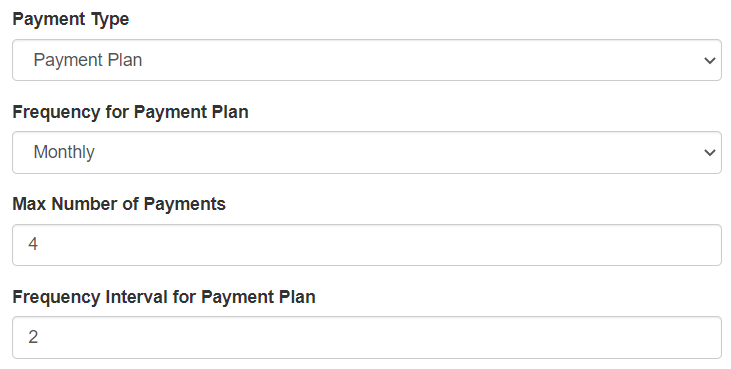
- Select a frequency from the Frequency for Payment Plan dropdown. This determines the frequency at which installment payments will be made. For Payment Plans, Monthly is the most commonly used option.
- Indicate the number of payments in the Max Number of Payments field. This will determine the number of payment installments for the plan. e.g. 4 for four installments
- Use the Frequency Interval for Payment Plan field to define the time interval between payment installments, according to the frequency selected in Frequency for Payment Plan.
- For example, if you selected Monthly for the Frequency for Payment Plan, and enter 2 in the Frequency Interval for Payment Plan field, the member's credit card will be charged every 2 months, until the Max Number of Payments has been reached.
Examples:Frequency Max Number of Payments Frequency Interval Monthly 4 3 Dues will be paid in 4 installments. Each installment will be charged every 3 months Monthly 6 1 Dues will be paid in 6 installments. Each installment will be charged every month. Weekly 10 3 Dues will be paid in 10 installments. Each installment will be charged every 3 weeks.
- For example, if you selected Monthly for the Frequency for Payment Plan, and enter 2 in the Frequency Interval for Payment Plan field, the member's credit card will be charged every 2 months, until the Max Number of Payments has been reached.
- Recurring - With a Recurring payment type, also referred to as auto-renewal, the member can choose to automatically charge her credit card the full amount of dues at some frequency. For Junior Leagues, this would most often be used to offer members the ability to pay their dues automatically each year.
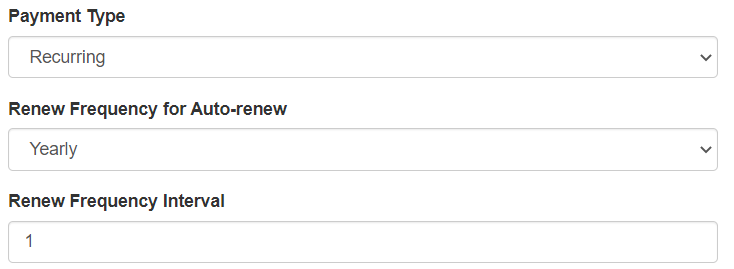
- Select a frequency from the Renew Frequency for Auto-renew dropdown. This determines the frequency at which the member will be charged for the full amount of dues. For Junior Leagues, this will usually be set to Yearly.
- Enter a number into the Renew Frequency Interval dropdown to set how often the payment gets charged. For example, if you enter 1, it would be every year. Payments will occur on the anniversary of the first payment. This will always be set to 1 if Yearly is selected.
- For example, if Renew Frequency for Auto-renew is set to Yearly and 1 is entered for Renew Frequency Interval, the member's credit card will automatically be charged the full amount of dues, once a year, starting on the day the member submitted the first recurring payment, and on that day for subsequent one year intervals.
IMPORTANT
- If you would like to offer a particular dues option, e.g. Active Dues, as both a single payment, and as a payment plan, you must create two Dues Definitions, one for each payment type. Create the Dues Definition for single payment, and then click the Copy icon
 to make a copy of the Dues Definition. Edit the copy and change the Name and Description (if needed), and the Payment Type, and related settings.
- If there are any donations, fees or other charges associated with dues, you can create those as add-ons. See Creating Dues Add-Ons.
- If there are any donations, fees or other charges associated with dues, you can create those as add-ons. See Creating Dues Add-Ons.
- For Recurring payments (Autorenew), dues add-ons are only included in the first year's payment. Subsequent annual payments will automatically charge the credit card the amount in the Dues Definition; they will not include add-ons.
- Make sure the setting Set Dues Period Span is set to the League year for which you are collecting dues. When you change the setting to a new year, existing Dues Definitions will be copied to that year. If you change the setting to an upcoming year, you will no longer be able to use Dues Management to collect dues for the current year. If you need to collect any left over payments for the current year, you can setup a payment page using the Simple Store.
Archiving Dues:
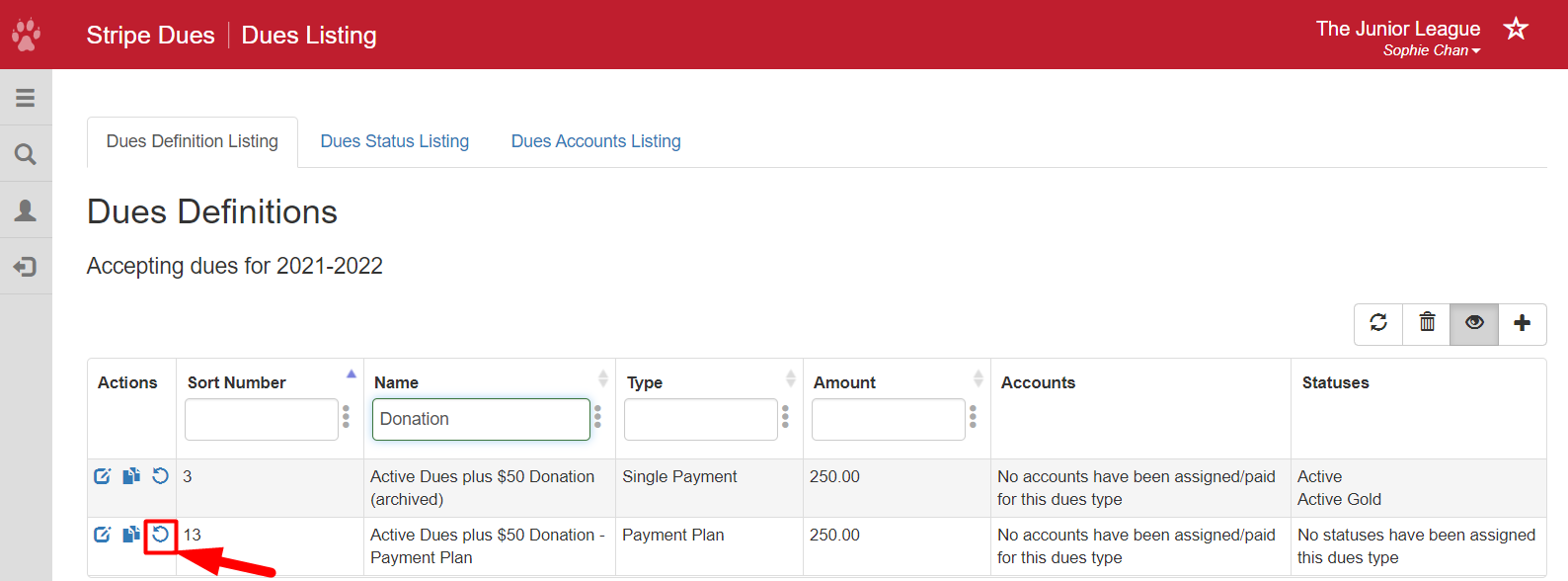
- To archive dues, click on the 'X' icon next to the dues definition
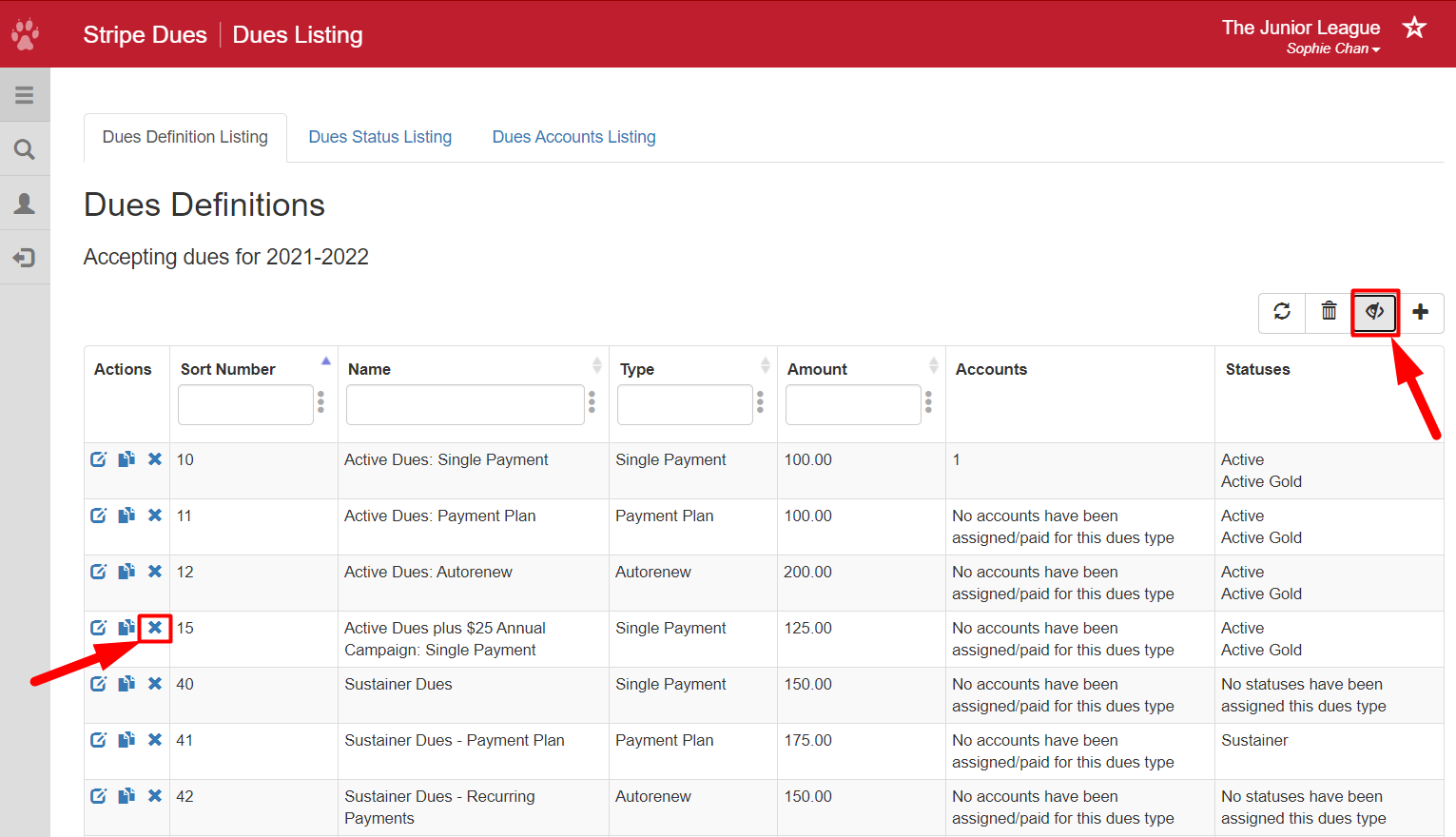
- To see all of your dues, including archived dues, click on the eye or Include Archived icon.
- To restore a dues definition that has been archived, click on the refresh or restore icon.