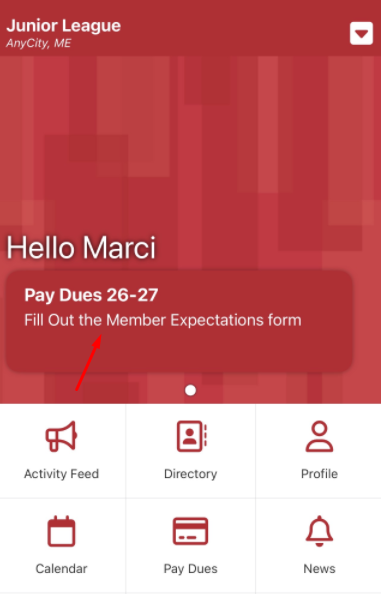
Use the following procedure to require members to complete a form before paying dues. This is appropriate when a member must acknowledge a Member Conduct Agreement or Member Expectations Agreement prior to submitting payment.
This process leverages the Pay Link Override setting located at:
Dues Management > Membership Dues Requirement > Member Visibility
The Pay Link Override feature allows you to specify a URL to a required form. When configured, clicking the Pay link on the member portal home page will redirect the member to the designated form instead of the payment screen.
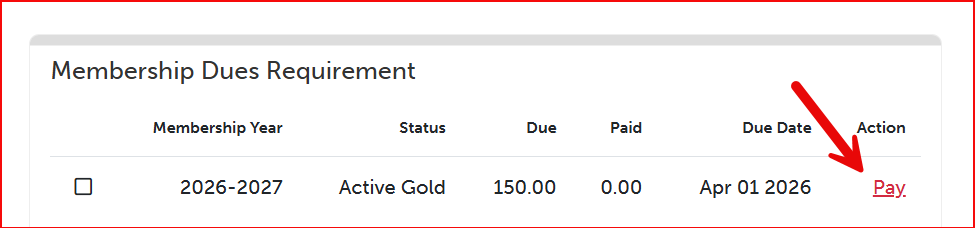
The form should be configured to automatically redirect the member to the dues payment screen upon submission, ensuring a seamless transition to payment after the required acknowledgment is completed.
Click here to see a video example of the workflow once configured: https://app.screencast.com/TXajn3SMZikmw
Required Access:
You will need the Dues Administrator or Administrator access level to access Dues Management.
You will need the Form Administrator or Administrator access level to access Form Builder 2.0.
Steps to be Taken:
- In Form Builder, create the form to be completed before the member pays dues. Make sure the form Set Up option Public? is set to No. This should be a member form, not a public form. See the article > Form Builder - Step by Step to get started with building forms.
- IMPORTANT: Go to Set Up options for the form and set the Form Confirmation > Destination URL to the following.
https://vms.ajli.org/?nd=vms_stripe_dues_landing
This will direct the member to the dues payment screen after the form is submitted.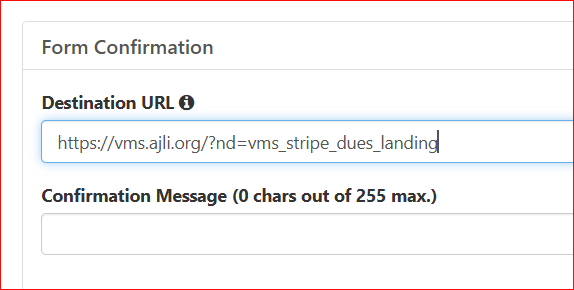
- Go to Dues Management > Membership Dues Requirement > Member Visibility
- Below the year for which dues will be collected, enter the URL to the form in the Pay Link Override URL field. See the article Publishing Forms for instructions on retrieving the URL for a member form.
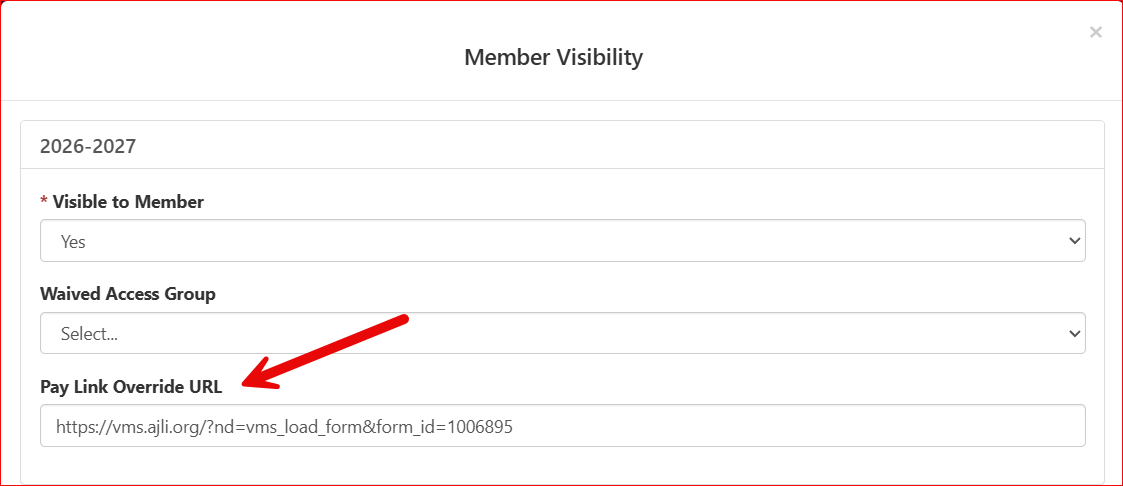
- Once configured, the workflow for paying member dues should look similar what is shown in this video.
https://app.screencast.com/KkmHdi3MsruQq
IMPORTANT This procedure will direct the member to the form when she selects the Pay link from the member portal home page.
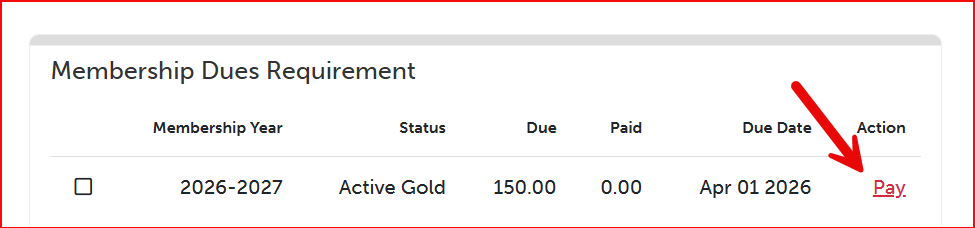
If a member goes directly to the URL https://vms.ajli.org/?nd=vms_stripe_dues_landing, she will by pass the form and go directly to the dues payment page. Do not distribute the above URL in your communications, Quick Links, or News and Alerts, as this will bypass the form.
If you would like to distribute a URL to members for paying dues, distribute the URL to the form, as described in the instructions above.
If you have members who should not complete the form before paying dues, you can distribute the URL https://vms.ajli.org/?nd=vms_stripe_dues_landing to them. This will take those members directly to the payment page, bypassing the form.
IMPORTANT - The form override link does not apply to the Pay Dues icon on the JL app. We will be addressing this in an upcoming release. For the meantime, you can create alert bars to direct your Members to fill out the form first. See Creating an Alert Bar.