
Buttons help direct visitors to important call-to-action requests, such as registering for an event, making a donation, or completing an interest form.
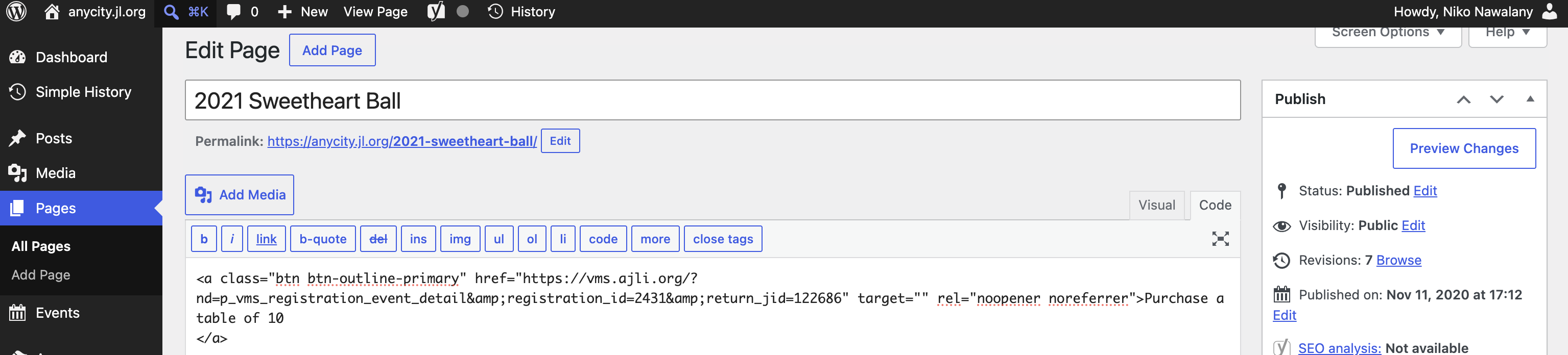
Note: Buttons are created by adding a small snippet of HTML directly into your page editor in the 'code'. The Member Essentials Public Website supports basic HTML only. Custom CSS, JavaScript, and other advanced code are not supported.
Button Styles
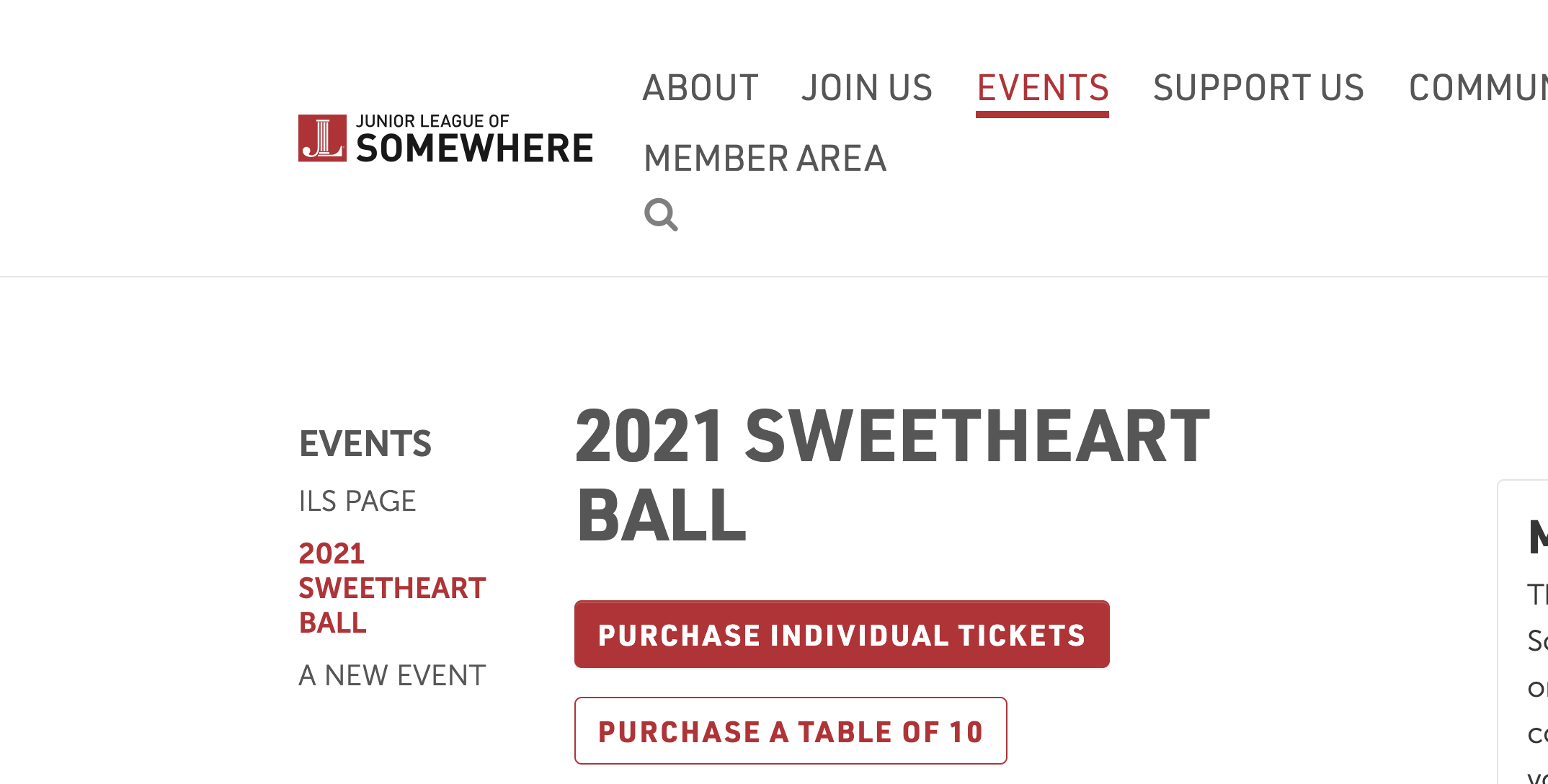
The AJLI WordPress template includes two button styles:
- Primary Button – A solid-colored button that stands out and is best used for your primary call to action.
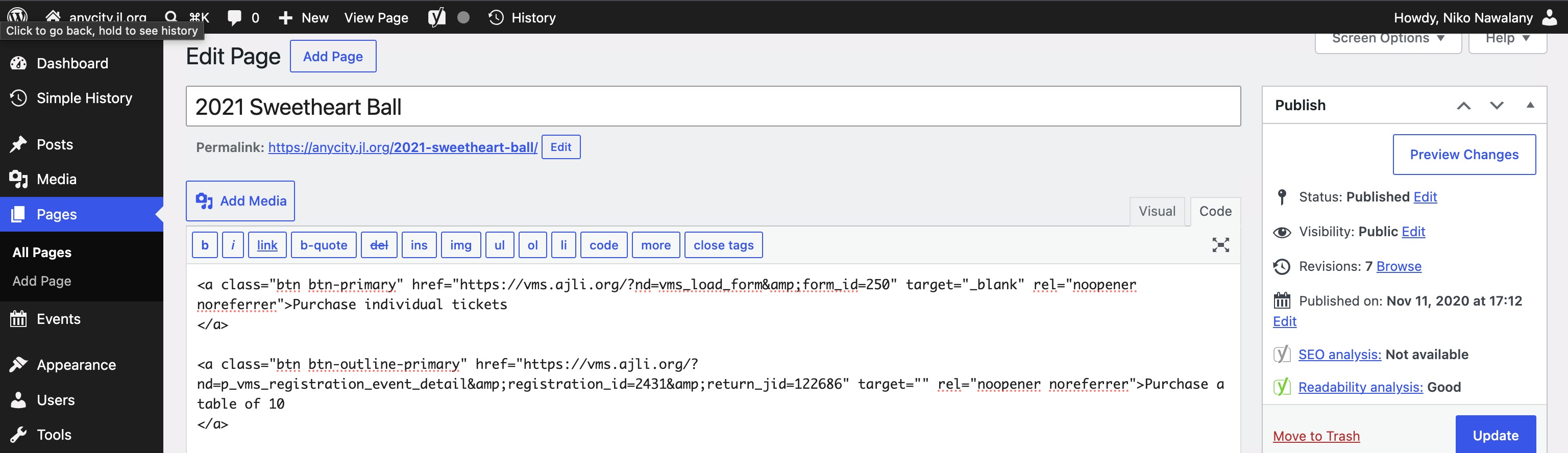
<a class="btn btn-primary" href="https://vms.ajli.org/?nd=vms_load_form&form_id=250" target="_blank" rel="noopener noreferrer">Click here to apply</a>
- Primary Outline Button – An outlined button that works well for secondary actions or when you want a less prominent option.
<a class="btn btn-outline-primary" href="https://vms.ajli.org/?nd=vms_load_form&form_id=250" target="_blank" rel="noopener noreferrer">Click here to apply</a>
Create a Primary Button
- Open the page where you want the button to appear.
- Paste the HTML code shown below into your page content.
- Replace the placeholder text with your own button label.
- Replace the sample URL with the webpage you want visitors to open.
- Save or preview the page to confirm the button displays correctly.
Create a Primary Outline Button
- Paste the Primary Outline Button HTML into your page.
- Replace the placeholder button text.
- Replace the sample URL.
- Save or preview the page.
Example Button Text
Buttons work best when they clearly describe the action visitors will take.
Examples include:
- Register for an Event
- Donate Now
- Become a Member
- Learn More
- Apply Today
- Complete Our Interest Form
- Contact Us