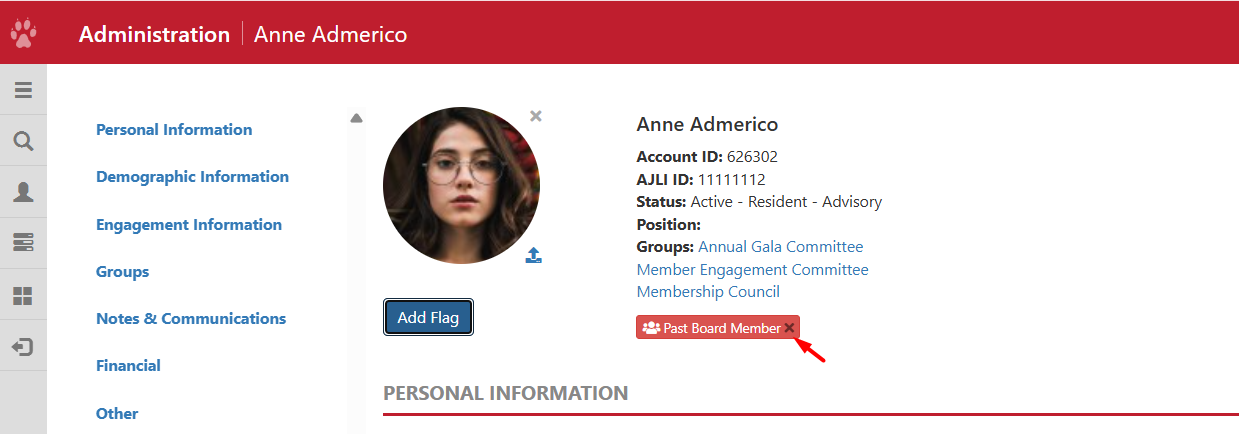
This article walks you through the process of manually adding a flag to a Member's account from their profile in the Admin Directory.
Required access:
You will need the Member Administrator access level or Administrator
Where to go:
- From the homepage, go to Admin > Member Search
- Search for the member's profile where you would like to add the flag.
Steps to be taken:
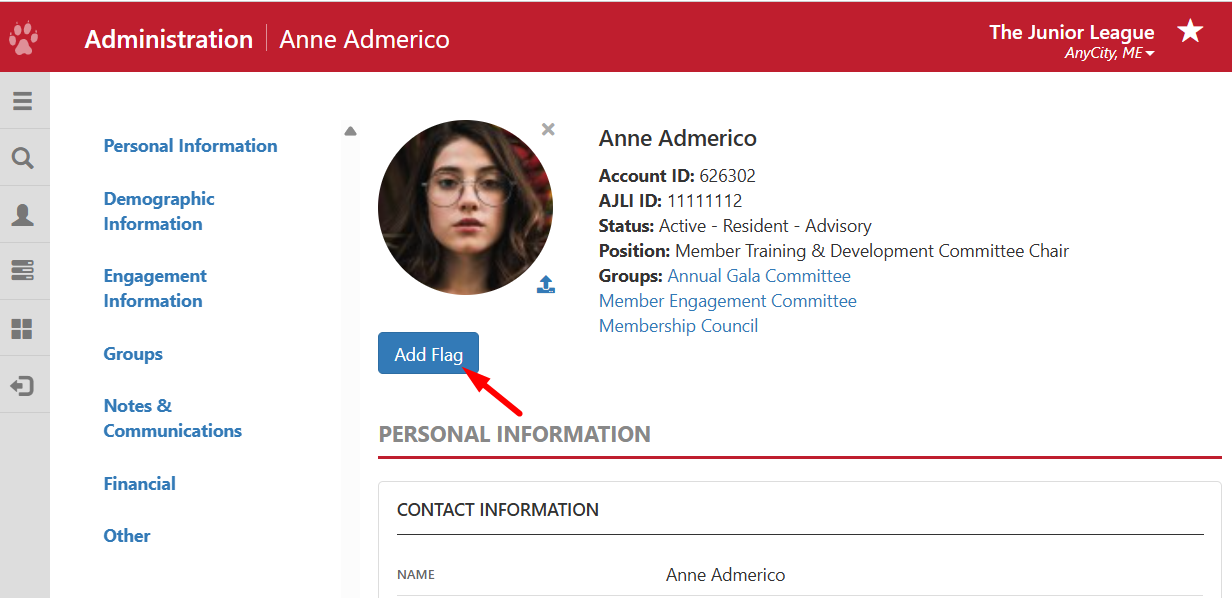
- From the Member's profile, click Add Flag
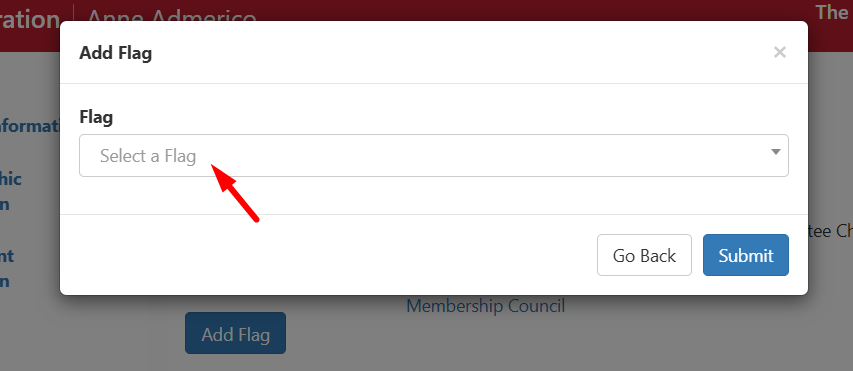
- Select the appropriate flag and click Submit
- The profile will refresh, and the flag will display on the account.
- The access group correlated to the flag will also automatically refresh at this time, and the member will be added within moments
Deleting a Flag from an Account
On the Member's profile, click the x on a flag. This will remove the flag from the member's account.
NOTE: If the flag is correlated to an existing access group and the member meets the access group's include conditions, the flag will return when the system refreshes nightly.