This article will show you how to create a new account flag using the Flag Configuration tool.
Account Flags serve as visual markers to identify accounts that meet certain criteria. They are ideal for highlighting key individuals, such as members in leadership roles.
Flags can also be associated with an existing access group or used to create a new access group, making them highly functional. This allows you to take targeted actions, such as emailing flagged members or restricting access to specific content, shifts, forms, and more. Essentially, many of the capabilities associated with access groups can also be used with account flags.
Required Access:
You will need the Access Group Administrator and Member Administrator access level or Administrator.
Where to Go:
- From Admin > Member Management
- Find Flag Configuration
Steps to be taken:
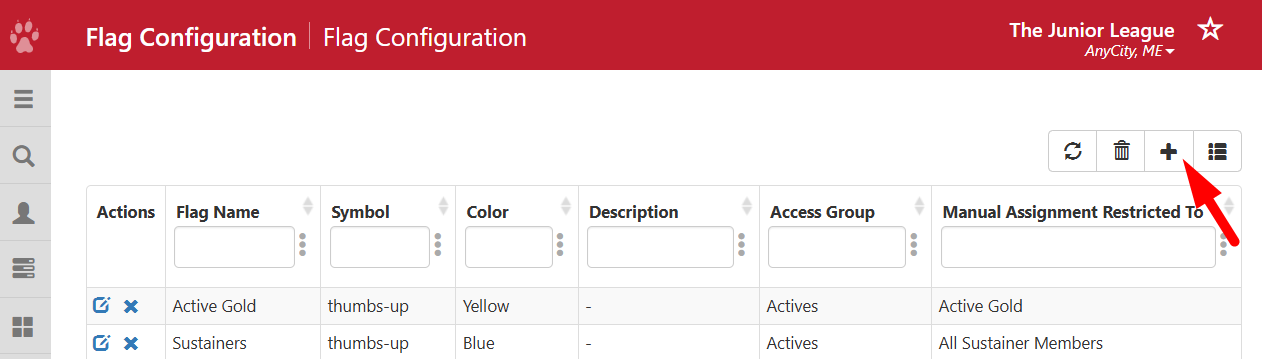
- On the top right, you can click the "+" sign to add a new flag.
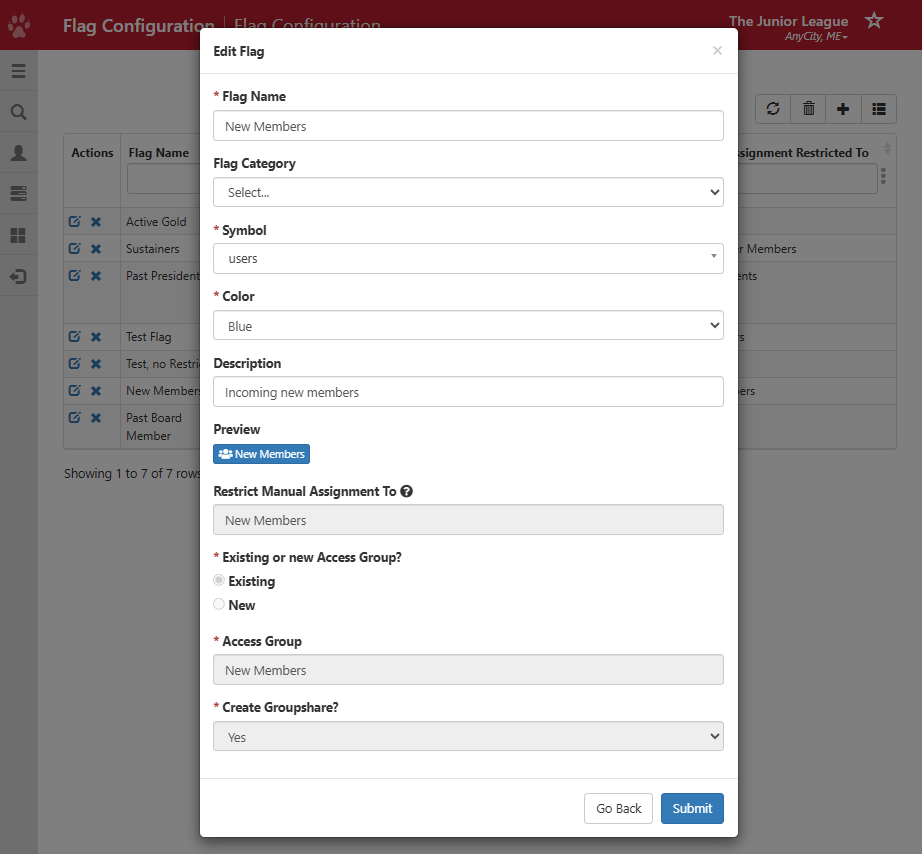
- A new window will appear. Complete the following fields to create your flag.
- Flag Name - name your flag (i.e. Past Presidents, 40 Under 40, etc.) . This name will appear on your flag.
- Flag Category - This filed is not used at this time.
- Symbol - Select the symbol that will represent your flag.
- Color - This changes the color of your flag.
- Description (optional)- Enter a description explaining the purpose of the flag.
- Preview - After selecting the symbol and color, a preview of the flag's appearance will display here.
- Restrict Manual Assignment To (optional)- If needed, you can restrict the ability to manually assign the flag to those in a specific access group you'd select here. The dropdown will pull from groups listed in Member Management > Access Group Manager
- Existing or new Access Group?- You can select an existing access group that accounts assigned this flag will be added to, or you can create a new access group for them
- If you select Existing, a dropdown will appear where you can select an existing access group. Anyone who's in the selected access group will automatically be assigned this flag.
- Anyone who no longer meets the access group's conditions will have the flag automatically removed from their account in the nightly refresh
- If you select New, a New Access Group Name field will appear that allows you to name your new group.
- Create Groupshare? - Select Yes if you would like accounts with this flag to have a GroupShare group.