As Administrator in Digital Cheetah and Member Essentials, you can copy Member Content pages from Digital Cheetah to Member Essentials.
Copy the Content Page
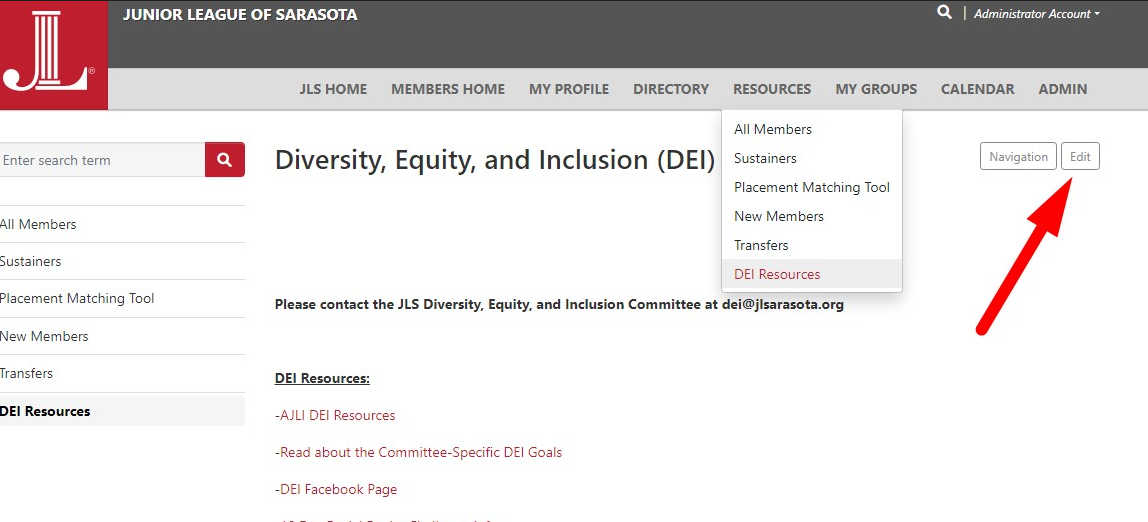
- In Digital Cheetah, from the Member Content page select Edit
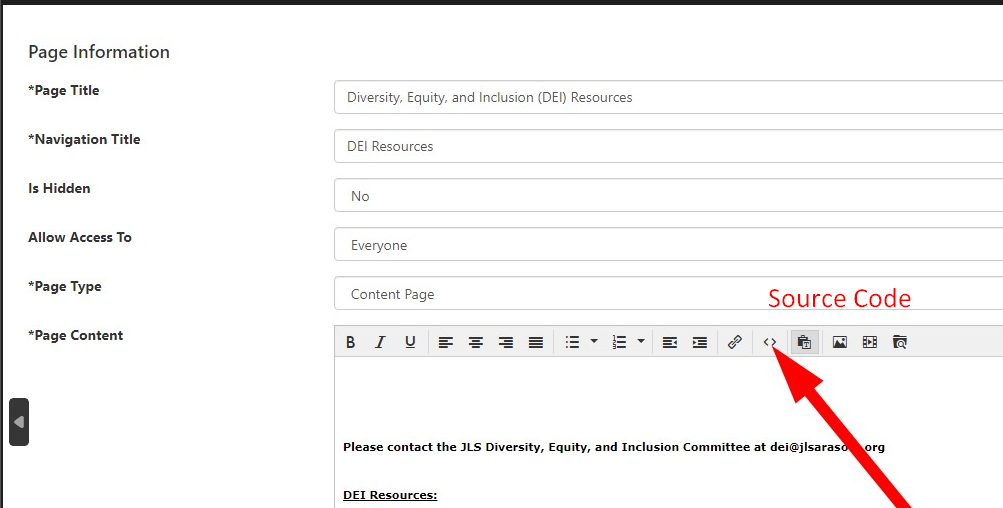
- Click the Source Code button.
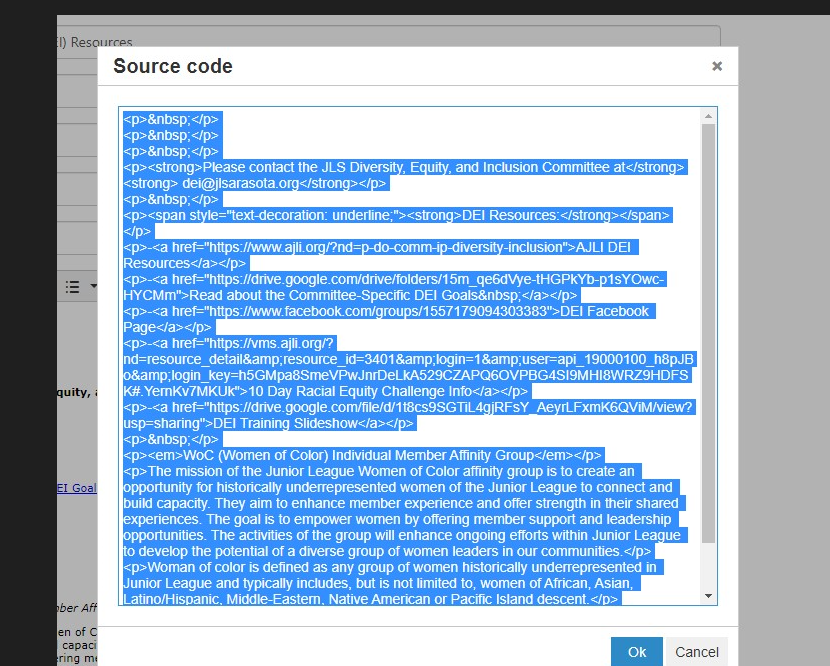
- Select all the text and copy (Ctrl-C or Cmd-C).
- Create a new member content page on the Member Essentials member portal. Set the Page Type to Content Page.
- Click the Source Code button.
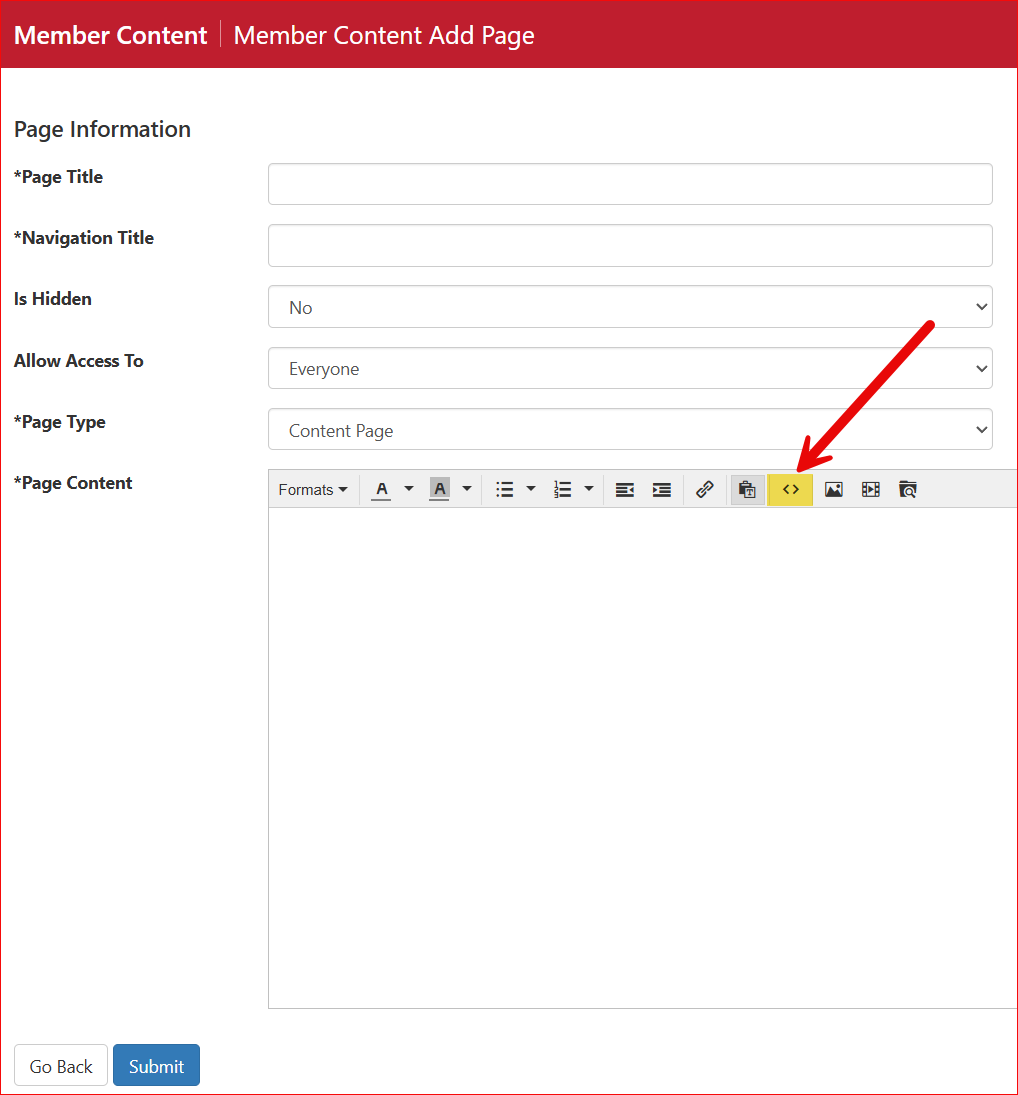
- Past the source code copied from Digital Cheetah into the window. Use Ctrl-V or Cmd-V.
- Click the Source Code button again to return to editor mode.
- Save the page then update any links on the page so they do not reference your legacy Digital Cheetah portal. See the next section.
Update Links on a Copied Content Page
- Select the link on the page then click the Link icon.
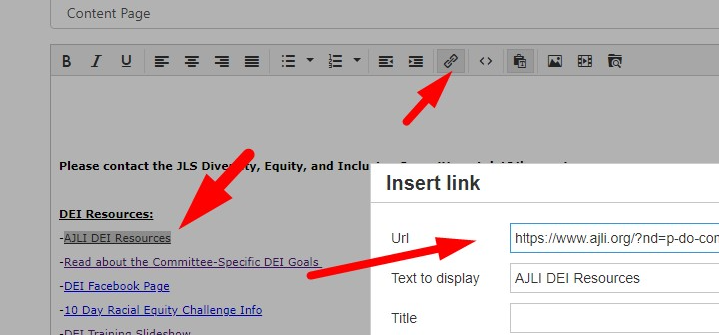
- Update the link as needed.
- If the URL refers to an external link (e.g. page on the external website, Google form, etc.), it does not need to be updated.
- If the URL refers to a content page or form, replace the URL with a link to the content page or form on the Member Essentials portal. This page or form will need to be copied or created first.
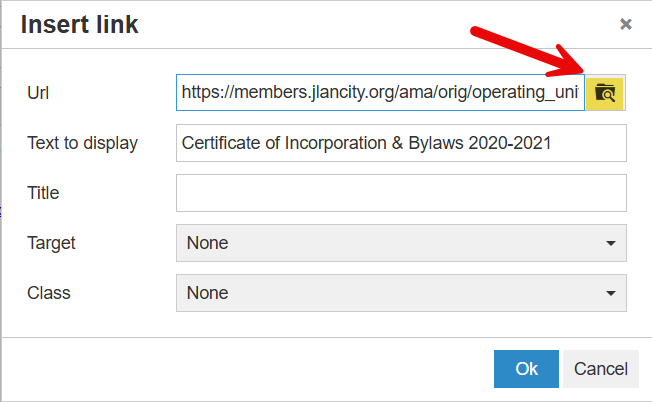
- If the URL refers to a file or document, use the folder icon next to the URL to upload a copy of the file and update the URL.