
This article will walk you through how to set an event to automatically register the first person on the wait list when a registered attendee cancels their own registration.
Take note, wait lists do not apply to Paid or Public events. Also, if you are having issues with No Shows, in the Setup > Advanced - General Settings > you can set Days Before Allow Cancel to 2-3 days to prevent Members from cancelling last minute.
How to get there:
- Go to Admin > Member Management
- Select Registration Tool Manager
- Click Setup next to the Registration Tool where the event is
- Find the Advanced - Wait List section
Steps to be taken:
- Set Enabled Wait List by Default to Yes, which will let you create a wait list for the events in the registration tool and set up how a person would be added to an event
- Complete the 'Wait List' email fields for members to receive notification they've been moved up. If these are left empty, members will receive no notification they've been bumped up from the waitlist. See below for examples.
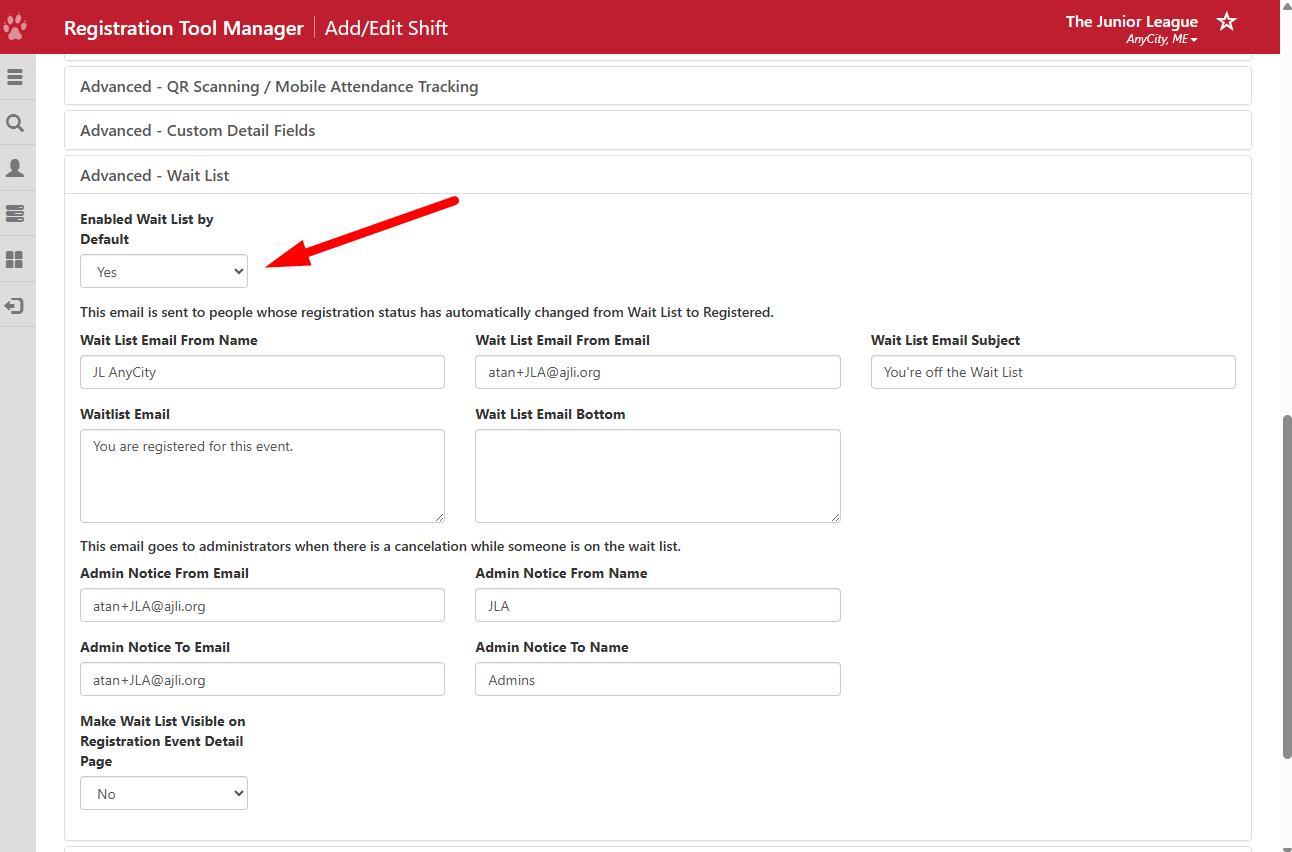 You'll want this to be fairly generic, as it will apply to all events in the registration tool. The specific event's name, date and time will auto generate between the Wait List Email Top and Wait List Email Bottom.
- Setting Make Wait List Visible on Registration Event Detail Page to Yes will display a list of Members who are on the wait list.
- Save your settings.
- Click Manage next to the registration tool where you enabled the Wait List.
- Find the event you want to enable the wait list for and edit.
- Set the Enable Wait List dropdown to 'Yes'. This needs to be done for each event.
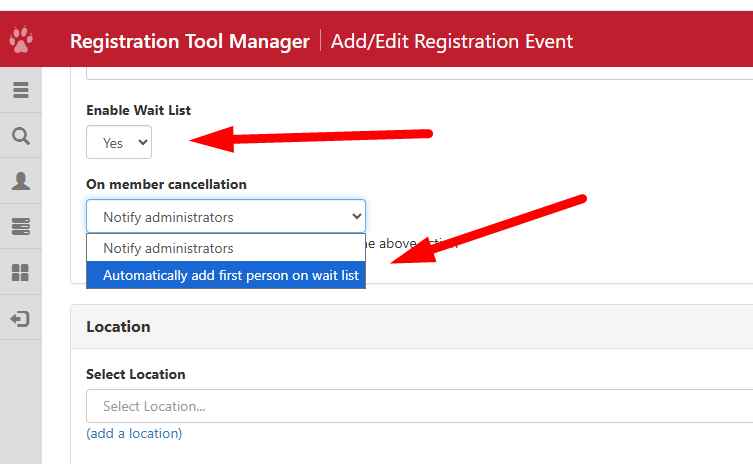
- IMPORTANT- Administrative cancellations will not invoke any wait list action. This means that an Admin changing a member's registrant status from 'Registered' to 'Cancelled' in the Attendance Manager will not trigger the wait list to automatically add the first person on the waitlist. A member will need to cancel their own registration in order for the wait list actions to trigger. If the member is unable to cancel themselves for some reason, impersonate the member to cancel from the calendar to retain the waitlist functionality.
- Save the event to enable the wait list automation.