
When a Member’s credit card is declined, she will automatically receive an email containing a link to update her payment information. She can also update it from her Profile.
After the card is updated using the renewal link, the system will automatically process the outstanding payments. This only applies to payment plans and recurring payments. Administrators can also resend the failed renewal link.
Required Access:
You will need Stripe Administrator or Administrator access level to see Failed Renewals in Stripe Admin.
Where to Go:
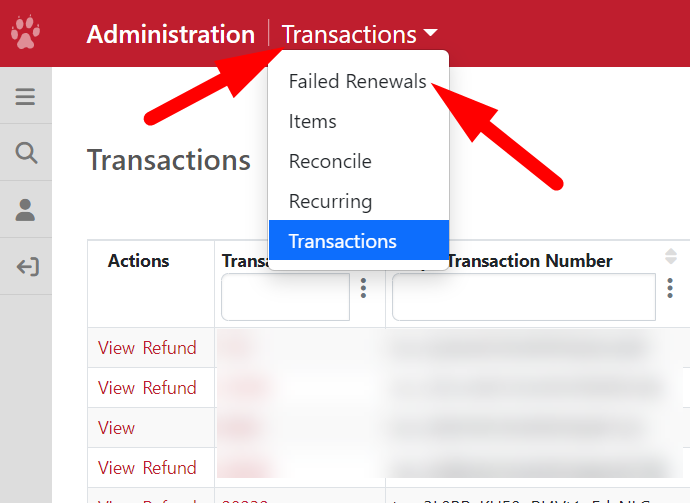
- Go to Admin > Member Management
- Find Stripe Admin
- Click on Transactions and choose Failed Renewals
Steps to be taken:
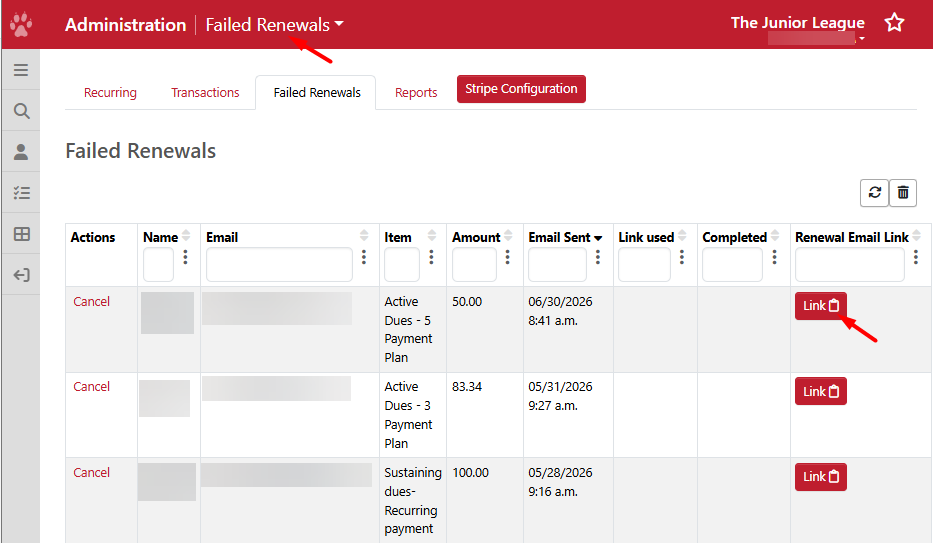
- In the Failed Renewals page, you will see all automatic renewal plans that have failed because of a credit card issue. If a Member's credit card gets declined, she should have received an email with a link to update her credit card information.
- If she is having issues locating this email, you can go to this page to re-send her the link.
- Find the Member's name and click on Link under Renewal Email Link to copy it.
- You can send the link via email or the Email Tool.
Here are all the columns listed on this page:
- Actions - you can cancel the plan to remove it from the list
- Name - Member's name
- Email - email address where the renewal link was sent
- Item - the dues definition (payment plan or recurring) from Dues Listing
- Amount - amount due when the credit card was declined
- Email Sent - the date and time when the renewal email was sent
- Link Used - the date and time when the Member clicked on the renewal link
- Completed - the date and time when the Member updated her credit card info
Take note, if the Link Used column is blank, you can reach out to the Member directly to see if they received the email. If they didn't receive the email, it's possible that it went to their Junk or Spam folder.
- To prevent this from happening in the future, please ask your Members to whitelist donotreply@ajli.org. See https://clean.email/blog/email-security/how-to-whitelist-an-email
How to Cancel Failed Renewals
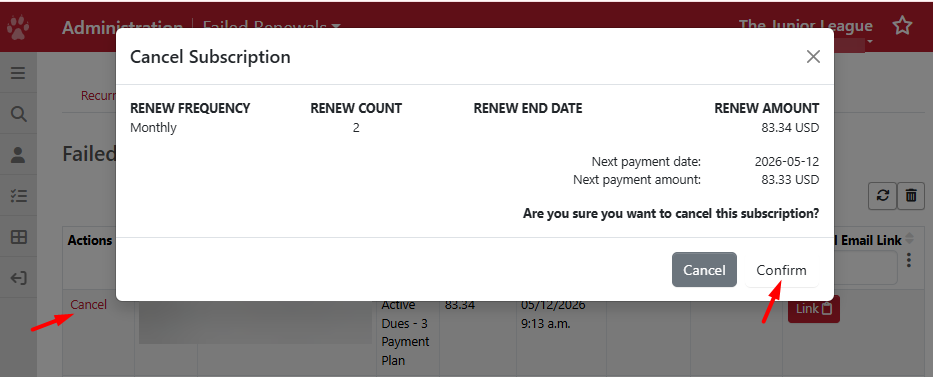
If needed, you can remove the failed renewal plan from the list by clicking on Cancel below Actions. This can be done in instances where the payments were collected outside of the failed renewal link.
- Find the Member's name with the failed renewal
- Below Actions, click on Cancel.
- A popup will appear confirming to cancel the subscription.
- Click on Confirm to cancel the renewal, which will remove it from the list.
How Members Can Update Failed Renewal from Profile
- From the homepage, find Profile or Edit your profile.
- Go to Membership Dues > Dues Orders.
- You will find a link with the message: Your last payment has failed. Click here to update your credit card & submit the missed payment
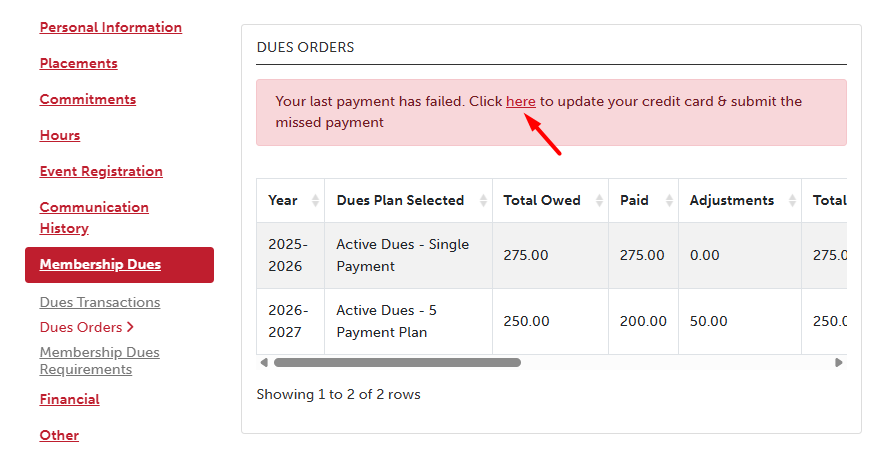
- When you click on the link, it will take you to the payment page where you can update your credit card information.
How Missing Payments are Charged
For payment plans, missed installments are charged based on when the credit card is updated, while auto‑renew plans automatically process daily payments until the account is current.
Payment Plans
- If a member updates their credit card after the Final Bill Date, all outstanding installments will be charged in a single transaction.
- If the update occurs before the Final Bill Date, only the missed installments will be charged. Any subsequent charges will also be billed with the new credit card information.
Recurring (Auto‑Renew) Plans
- For recurring auto‑renew plans, the system will automatically process additional payments on a daily basis until the member’s account is fully current.
Renewal Email
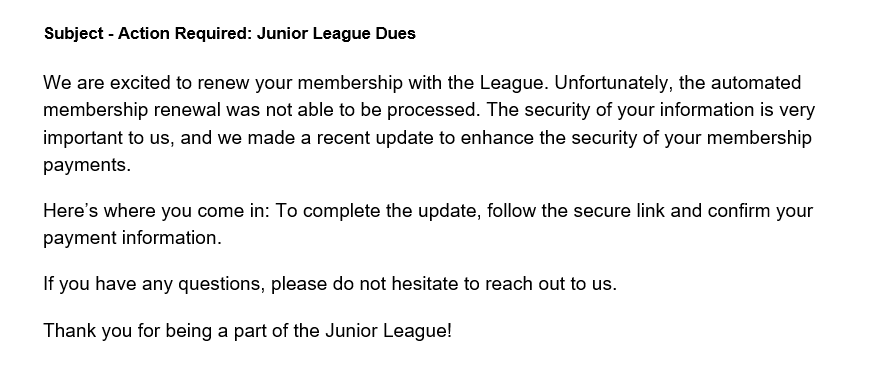
Here is a sample email below with the subject - Action Required: Junior League Dues
Take note, if there is a failed payment plan with an add-on, the Membership Dues Requirement will not look correct. To adjust the Paid, Total Paid/Adjustments and installment totals, please send a message to MemberEssentials@ajli.org with the Member's name, your League and "Adjust Dues - Failed Renewal Add-On" in the subject line.