This article will walk through how to associate a Dues Definition to a Status for the upcoming year. Make sure you are updating statuses for the next League year for any Members that are changing statuses.
Required Access:
You will need the Administrator administrative access level.
Where to Go:
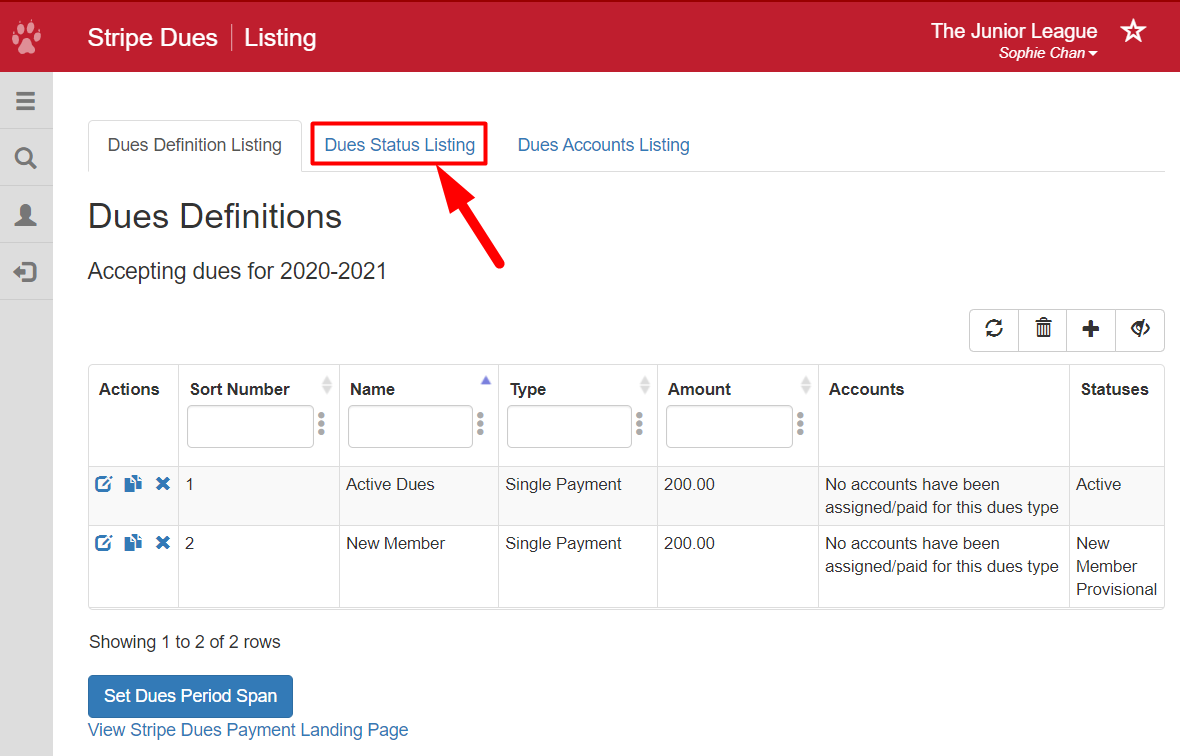
To get to the Dues Status Listing, follow these steps:
- From the Member Portal, click on Admin > Member Management
- Click Dues Management
- Click Dues Status Listing
Assigning Dues to a Status:
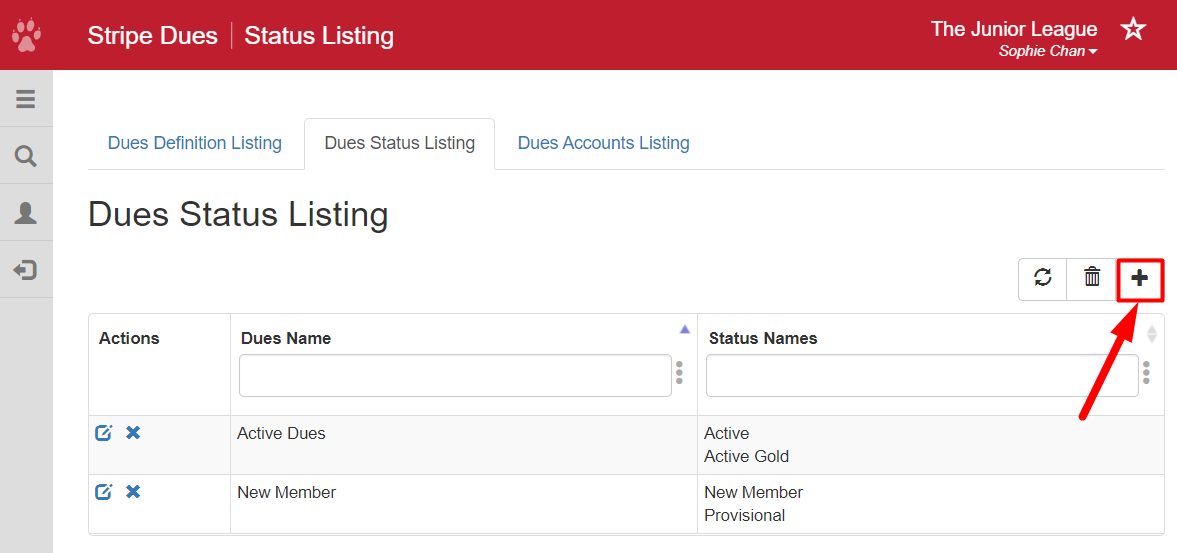
- Click the plus sign on the right side of the page.
- Select a dues item from the Dues Name dropdown.
- Click into the Status Name field and select a Status that should have this dues item as an option.
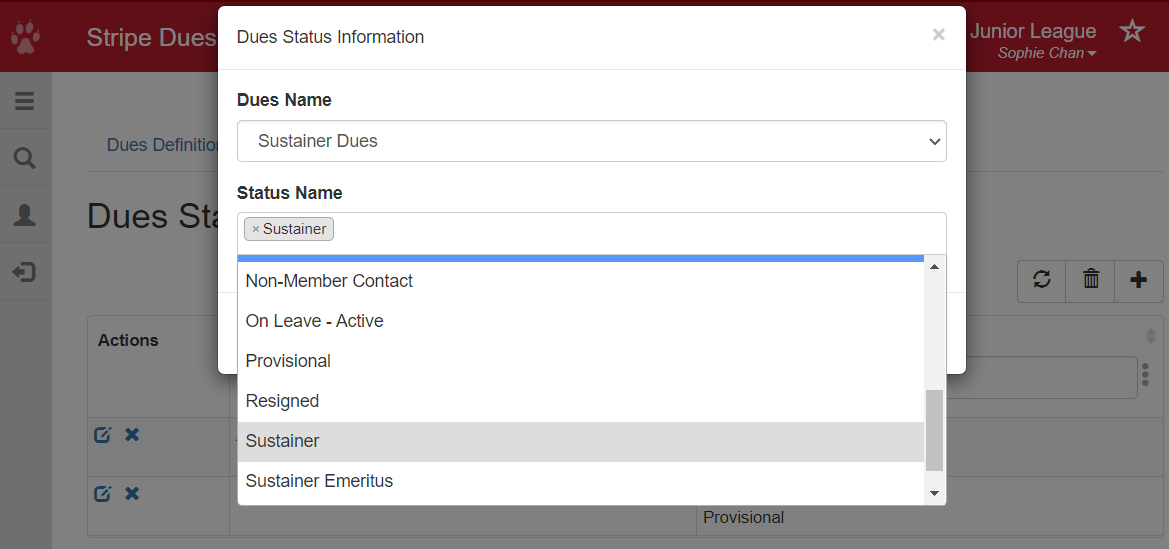
- To assign another status, click on the Status Name field again and select another status. Repeat this step as many times as necessary to associate the dues item with all of the desired statuses.
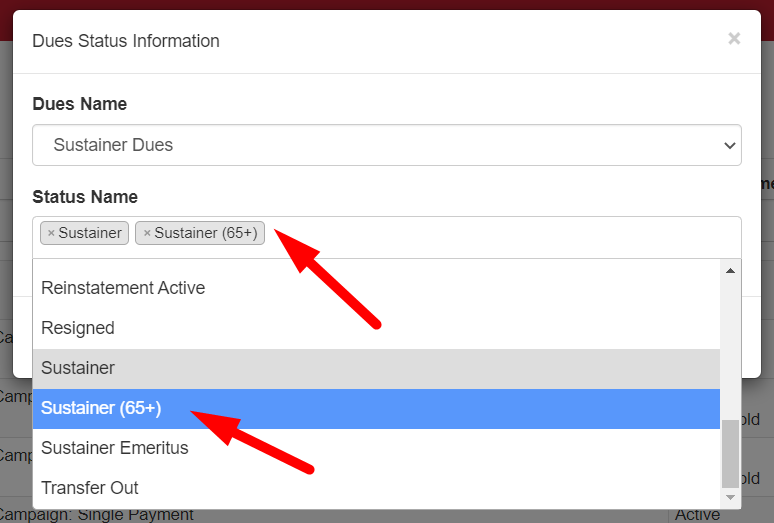
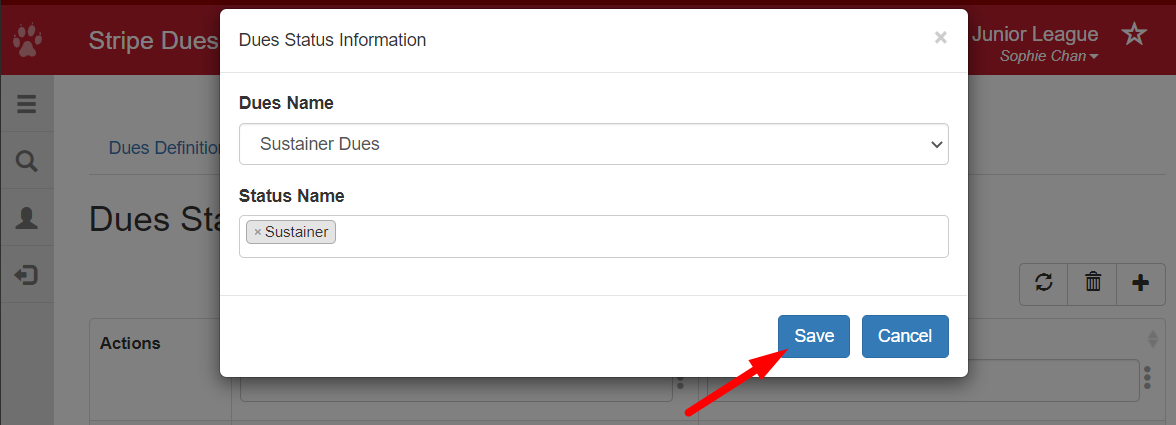
- Once finished, click Save.
UnAssigning a Dues Definition
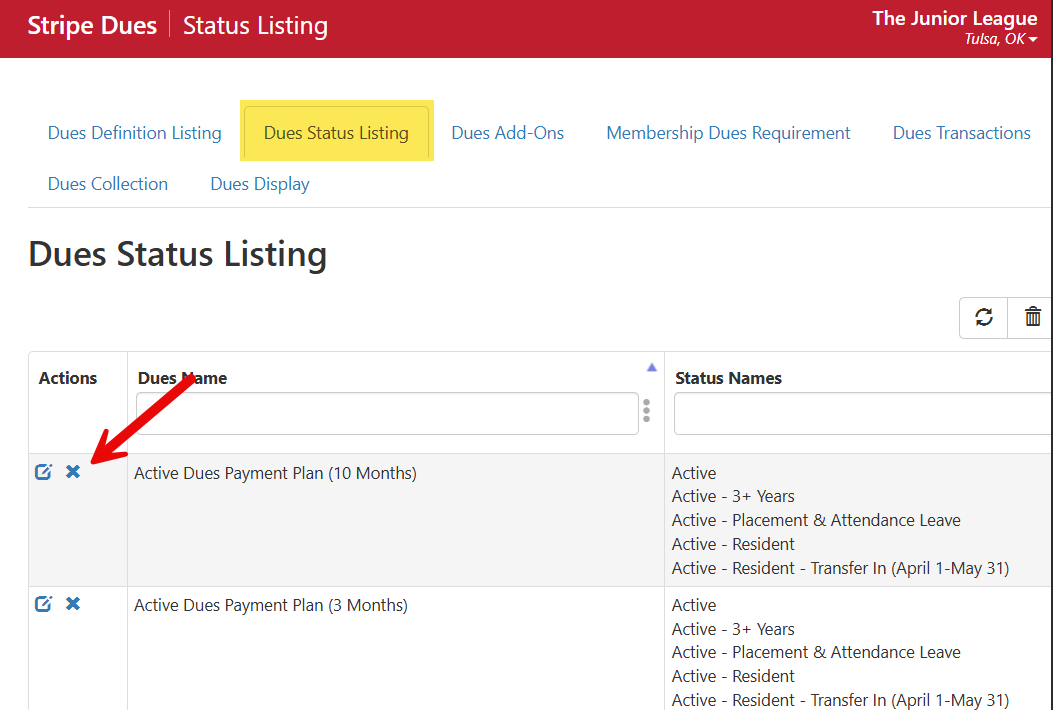
If you are no longer offering a dues payment option defined in a dues definition, you can disable the dues definition by unassigning the member statuses currently assigned to the dues definition. This will leave the dues definition intact, but it will not be visible to any members. This can be used to temporarily enable/disable dues definitions if you want to offer payment plans only at certain times of the year.
- In the Dues Status Listing screen, click the "X" next to the Dues Definition. This will unassign the statuses from that definition. The dues definition will still appear in the Dues Definition Listing screen, but will not be visible to members.